In AB Projects, each Microsoft Teams channel is linked one-to-one with a project. The link isn't just where the tab lives — it decides who is on the project and where task updates get posted.
One channel, one project
When you add the AB Projects tab to a Teams channel, you either create a new project for that channel or link an existing project you own or admin — see Installing the AB Projects Teams App. From then on the mapping is strict in both directions:
- Each channel has its own project, with its own members, task list, and workflow configuration.
- Task updates and comments are posted into that channel's thread, and replies in the thread sync back to the task — see Commenting with Mentions in Channels.
- A task's comments and attachments belong to that one project; nothing is shared across channels.
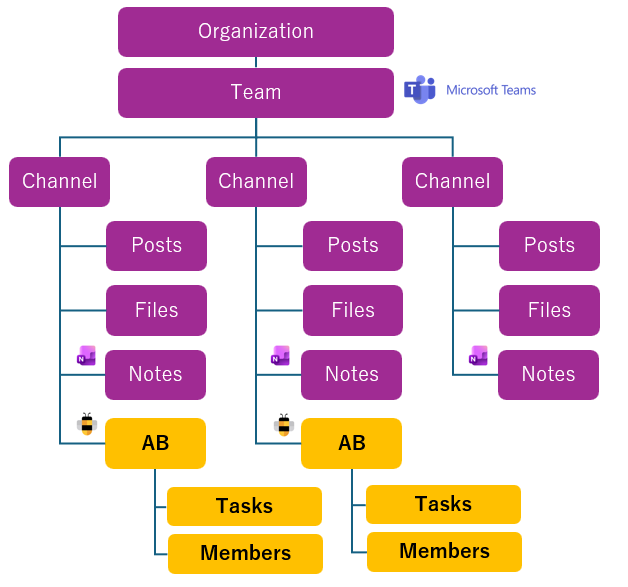 Diagram: Each Teams channel corresponds to a single AB Projects project. The channel holds its own posts, files, and notes — and AB Projects adds structured tasks and members within that same channel space.
Membership follows the channel automatically
You don't add people to the project by hand — there are no email invites. When anyone in the channel opens the AB Projects tab, the channel roster is synced and everyone in the channel is added to the project as a Member.
- The sync imports the whole roster — a person does not have to open the tab themselves; one member's visit brings everyone in.
- The sync is throttled to about once per hour per project, so a newly added channel member is typically picked up on the next sync rather than instantly.
- Auto-added members can be assigned tasks and @mentioned right away, because the sync registers their Microsoft identity with the project.
- The sync only ever adds people — it never changes a role an Owner or Admin has set (a Viewer stays a Viewer).
Why it works this way
AB Projects signs everyone in with Microsoft SSO (single sign-on — the same account you're already using in Teams), so every member is securely tied to their organization. With membership following the channel, the roster stays accurate with almost no upkeep, and access control stays where your Microsoft admins already manage it: the Teams channel.
Changing or removing the link
An Owner or Admin can unlink the channel from the project's settings (Remove from Teams channel). Unlinking never deletes the project or its tasks — to move a project to another channel, unlink first, then add the AB Projects tab in the new channel and pick the existing project. Details: Managing Project Settings.
Quick reference
| Fact | What it means for you |
|---|---|
| One channel ↔ one project | No ambiguity about where a project “lives” or which tasks belong where. |
| Membership = channel roster | Add or remove people in the Teams channel; AB follows within about an hour. |
| One visit onboards everyone | Any member opening the tab syncs the whole channel in. |
| Unlinking is non-destructive | The project and tasks survive; only the connection is removed. |
New to Teams itself? Microsoft's Teams and channels overview explains how teams and channels relate — AB Projects simply builds its projects on top of that structure.