Every project has a Project settings page — identity, members, integrations, workflow options, and the Microsoft Teams link. Most of it is Owner/Admin only, and the one rule that surprises people: you can't delete a project while it's still linked to a Teams channel.
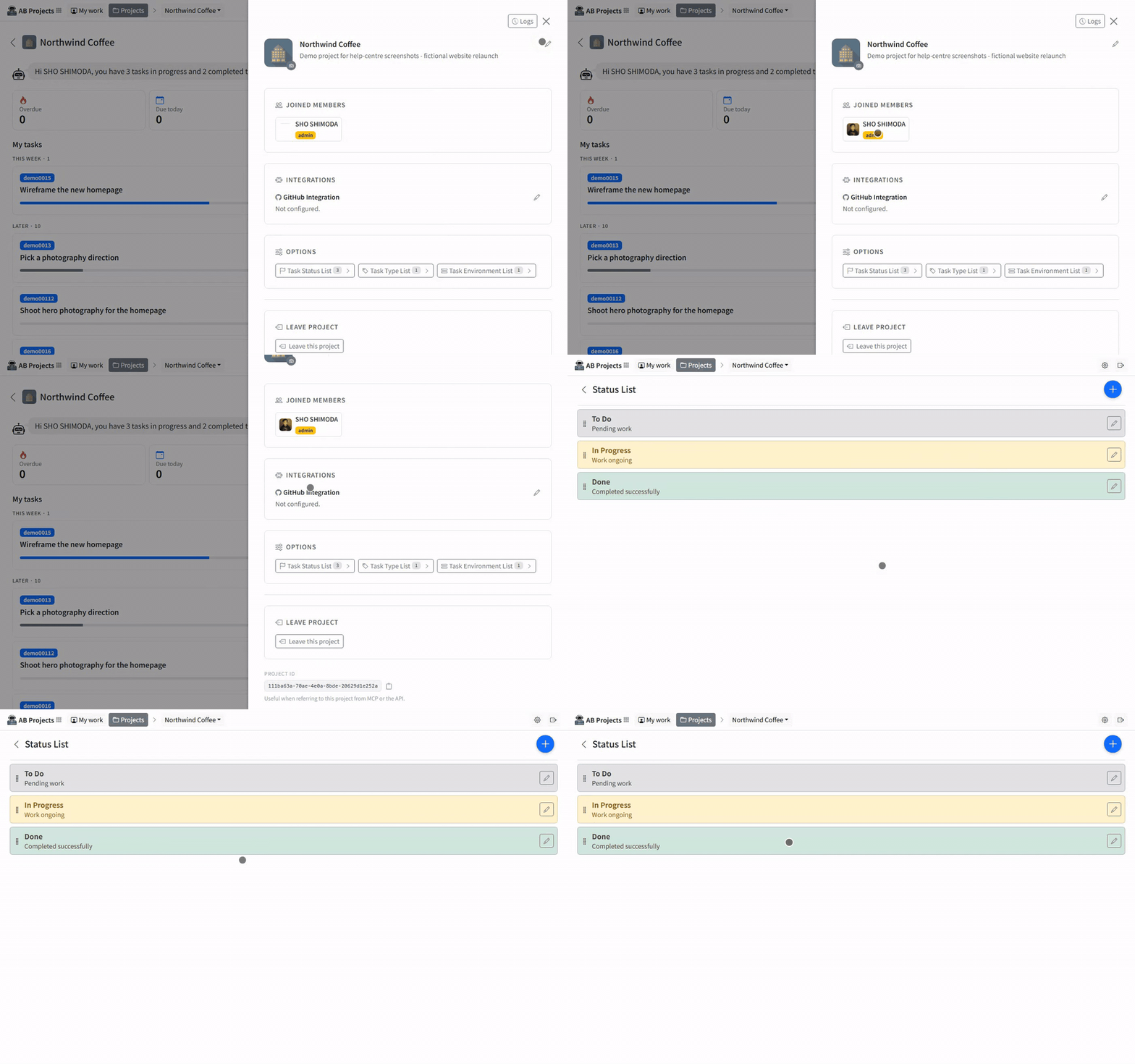
Project identity
- Name & description — click the pencil next to the name, edit, then Save.
- Icon — click the small camera button on the project icon to upload an image (Owner/Admin only). A recognizable icon pays off in the project list.
- Perma name — an optional short URL slug for the project, set in the project's edit form; if you leave it blank one is generated. It must be unique across AB Projects.
- Estimate time unit — also in the edit form: Hours or Days, the unit used whenever someone enters a time estimate on a task in this project.
Joined members
The Joined members section lists everyone on the project with their role. Owners and Admins change roles from the inline dropdown and remove members from here — but remember membership is driven by the linked Teams channel, so the roster mostly maintains itself. Details: Adding or Removing Members and Role-Based Access Control.
Teams channel notifications
When a channel is linked, AB posts task updates into it. If that gets noisy, Owners and Admins can calm it down under Integrations → Teams channel notifications — a master switch plus a checkbox per category. Everything is on by default, so nothing changes unless you opt out.
| Toggle | What it silences when unchecked |
|---|---|
| Post task updates to the linked Teams channel | The master switch — off means no task posts at all. |
| New tasks (created or added as subtasks) | Posts announcing new tasks and subtasks. |
| Status, progress, and complete/reopen | Status changes, progress updates, completions, reopens. |
| Assignment changes | Reassignment posts. |
| Schedule (start date, due date, time, reminders) | Date, time, and reminder changes. |
| Details (title, description, priority, type, environment) | Edits to the task's descriptive fields. |
| New comments | Comment posts. Note that @mentions are delivered as Teams mentions — see Commenting with Mentions in Channels. |
More on what the bot posts and when: Notifications and Reminders.
GitHub integration
Owners and Admins can connect a GitHub repository so branches can be created straight from a task. Under Integrations → GitHub integration, fill in:
- Owner / organization and Repository — the target repo.
- Personal access token — a GitHub token (a password-like key GitHub issues for API access) with
reposcope, created at github.com/settings/tokens. Stored securely, displayed as a password field. - Default branch — the branch new task branches are based on, typically
main. Then Save.
Task workflow (Options)
Each project defines its own workflow lists, opened from the Options section: Task status list (the stages a task moves through, including which status counts as complete and each status's progress percentage), Task type list (e.g. Bug, Feature), and Task environment list (e.g. Development, Production). Task priority is a fixed High/Medium/Low scale and isn't configured here. See Task Statuses and Workflows.
A brand-new project starts with no statuses at all, and the Status list page offers a set of starter templates — General project, Software development, Marketing campaign, Sales / CRM, Customer Support, Design / creative — so you can apply a standard workflow and then rename, recolour or reorder it.
The Microsoft Teams link
A project links to exactly one Teams channel (see Teams Channel and Project Linking). When linked, Owners and Admins see a Microsoft Teams section with Remove from Teams channel. Unlinking removes only the connection — to move a project to a different channel, unlink here, then add the AB Projects tab in the new channel and choose the existing project.
Ownership, leaving, and deleting
- Step down from owner — the Owner picks a member to promote (to Admin or Owner) and confirms with Yes, promote & step down; the previous Owner becomes a regular Member. This is the only way ownership moves — see Role-Based Access Control.
- Leave project — any Member or Admin can use Leave this project. If you're still in the linked Teams channel, the next sync re-adds you — the confirmation warns about exactly this.
- Danger zone: Delete this project — Owner only, and only when no channel is linked. Deletion asks for a reason, requires Yes, delete permanently, and cannot be undone — all tasks and settings are removed. A finished project can simply be left in place instead.
Quick reference
| Setting | Who can change it |
|---|---|
| Name, description, icon, perma name, estimate unit | Owner, Admin |
| Member roles and removal | Owner, Admin (granting/removing Admin: Owner only) |
| Teams channel notifications, GitHub integration | Owner, Admin |
| Task statuses, types, environments | Owner, Admin |
| Unlink the Teams channel | Owner, Admin |
| Transfer ownership, delete the project | Owner only |
| Leave the project | Any Member or Admin |
Set the workflow lists early, keep the name and icon recognizable, and let the Teams link handle the rest — the settings page is mostly a place you visit once, then rarely.