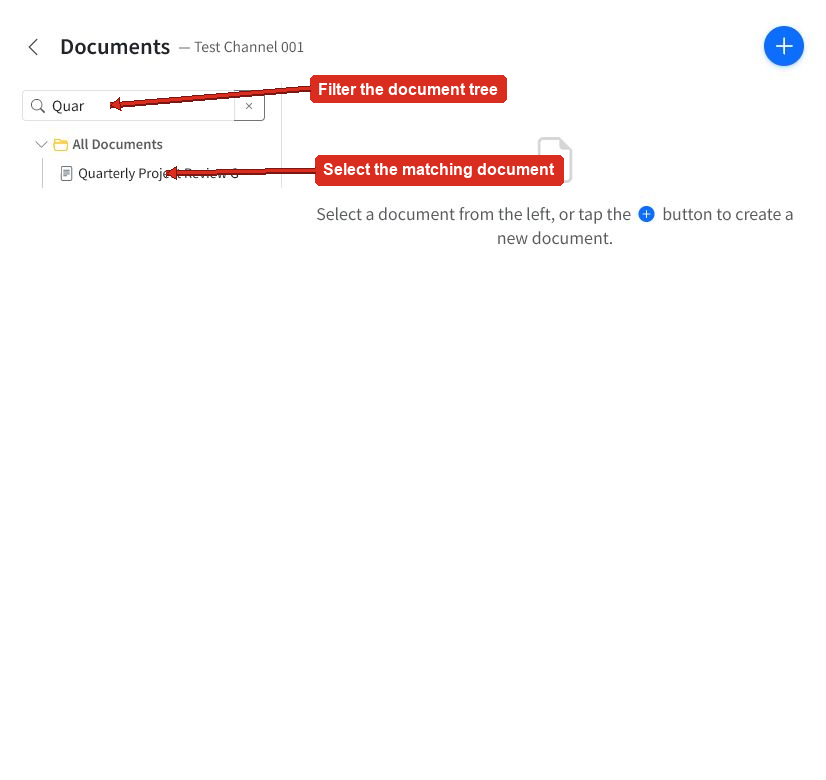
Connect project documents to the tasks that use them so instructions, decisions, and active work remain easy to move between. Use the document tree filter to quickly find a page by its title.
Find a document
Open the project's Documents area and use Filter documents above the document tree.
- Enter part of the document title.
- Select the matching document in the filtered tree.
- Clear the filter to show the full tree again.
Folders keep a large document tree organized. Use descriptive document titles so teammates can find the right page quickly.
Link a task from a document
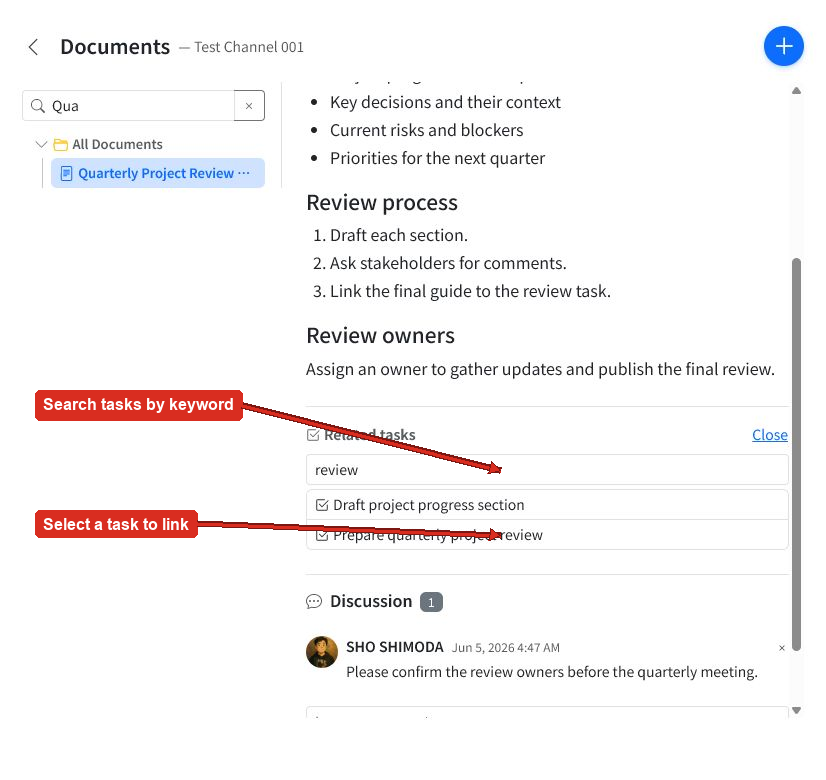
Open the document and find Related tasks. Select + Link task, enter a task keyword, then select the task you want to attach.
The linked task appears under Related tasks. Open it to move to the task, or select Unlink when the relationship is no longer useful.
Open the document from a task
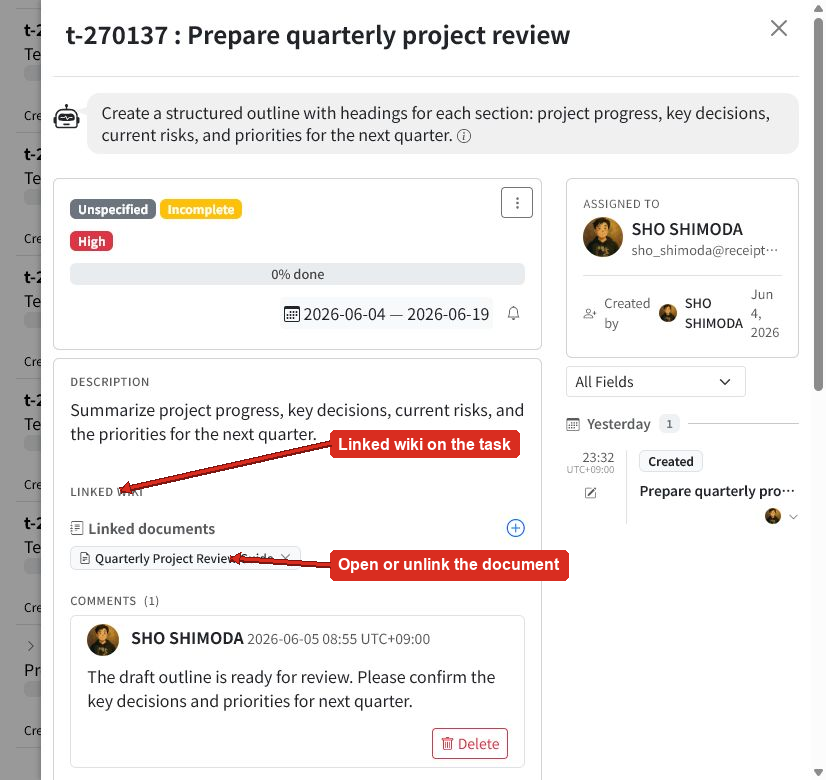
The same relationship appears on the task under Linked wiki → Linked documents. Select the document title to open it from the task.
Use the plus button to attach another document. Use the remove control beside a linked document to unlink it.
When to link a document
- Link a guide or specification to the task that implements it.
- Link a meeting note or decision record to the resulting follow-up work.
- Link a runbook to an operational or deployment task.
- Link a review guide to the task used to prepare the review.
Keep reusable instructions in the document instead of copying them into multiple tasks. The linked document remains the shared source of truth.
Documents and connected assistants
A connected assistant can list, read, create, update, and comment on project documents. This can help draft or maintain knowledge, but teammates should review important content and use clear edit notes.