AB Projects uses three related controls to describe where work stands: Status identifies the workflow stage, Progress records a completion percentage, and Complete closes the task when the work is finished.
Open the workflow actions
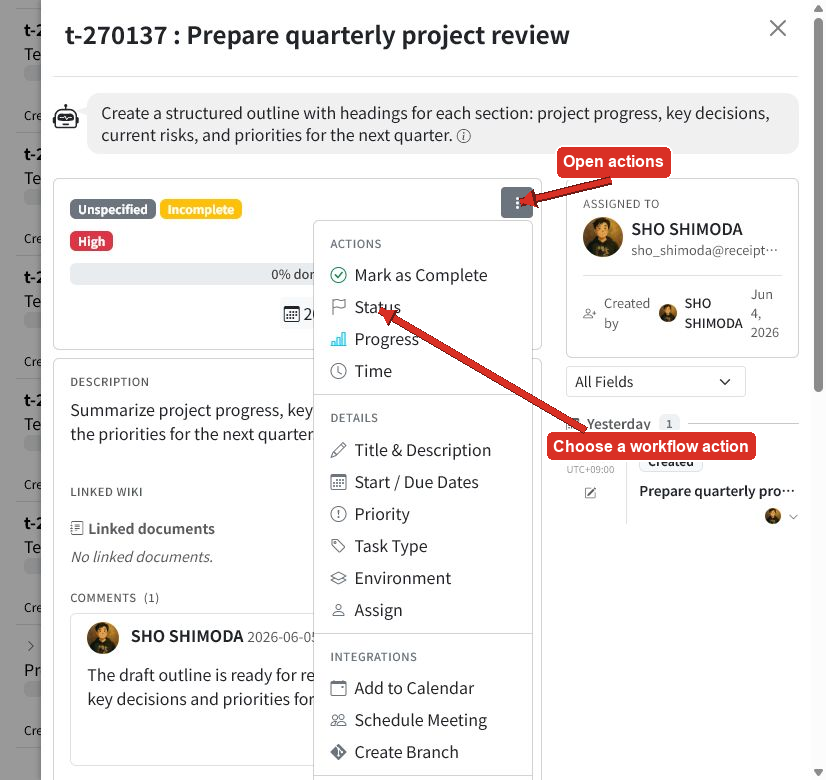
- Open a task from the task list.
- Select the three-dot actions button near the task badges.
- Choose Status, Progress, or Mark as complete.
You can also select the status or completion badge directly when it is visible.
Change task status
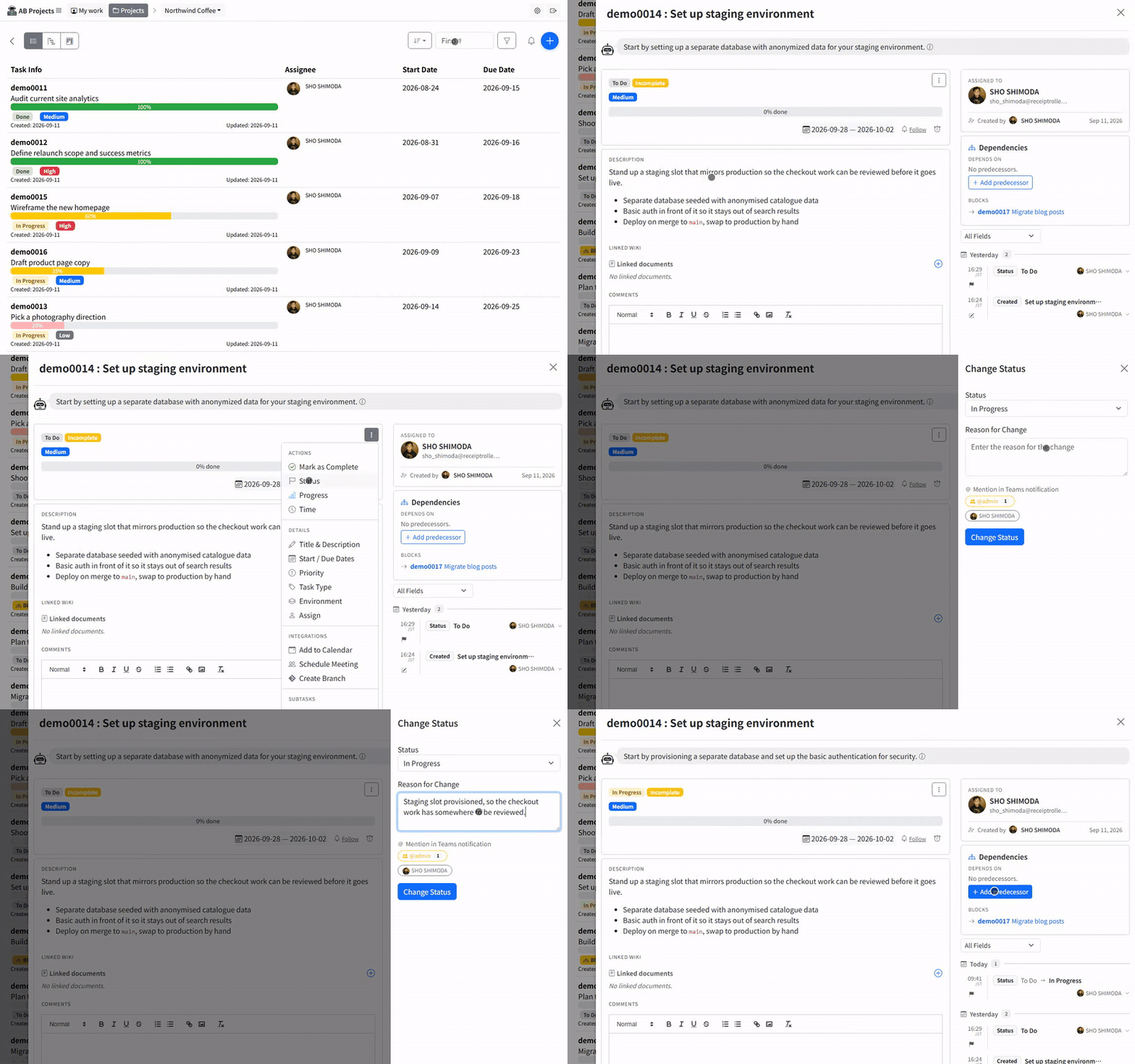
- Open the task actions menu and select Status.
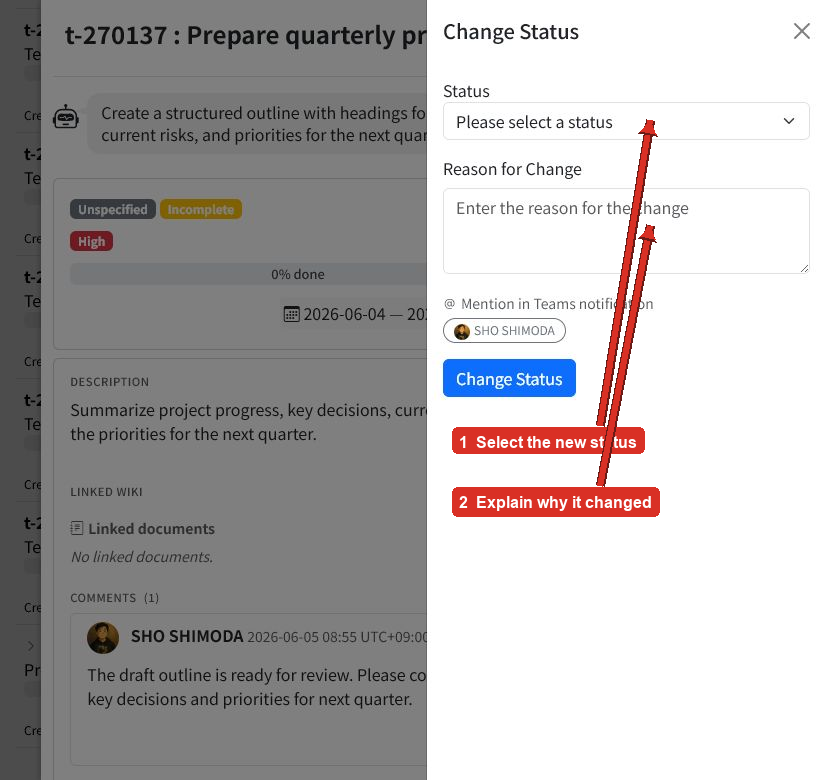
- Choose the new status from the project’s available options.
- Enter a short Reason for change.
- Select any members to mention in the Teams notification.
- Select Change status.
Status names depend on the project. If the picker only shows Please select a status, the project does not currently have status options available.
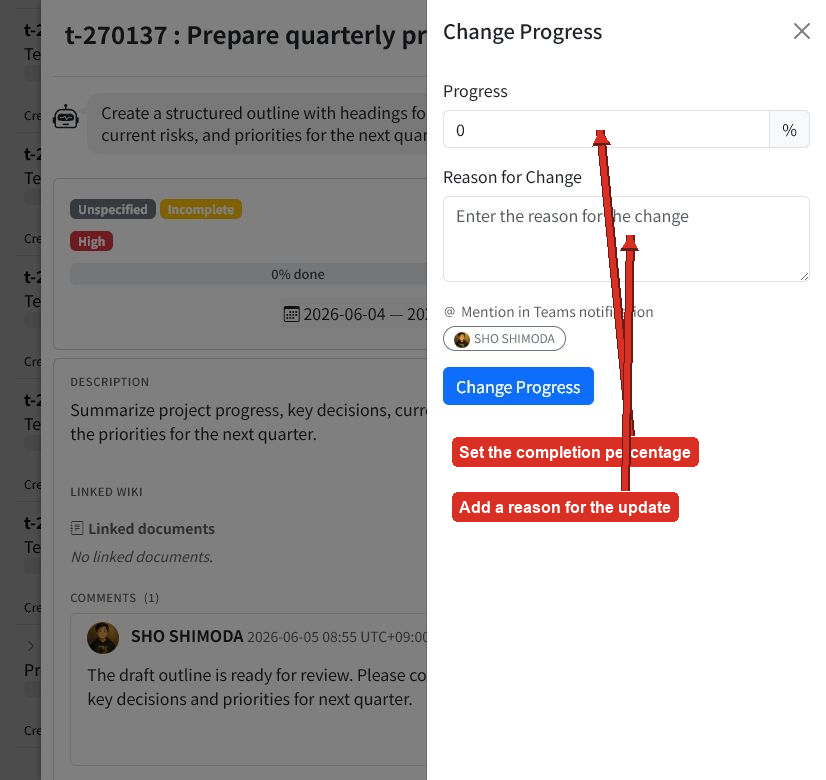
Update task progress
Progress shows how much of the task is finished without closing it.
- Open the task actions menu and select Progress.
- Enter a value from 0 to 100 percent.
- Enter the reason for the update.
- Select Change progress.
Use progress for meaningful checkpoints rather than small day-to-day fluctuations.
Complete a task
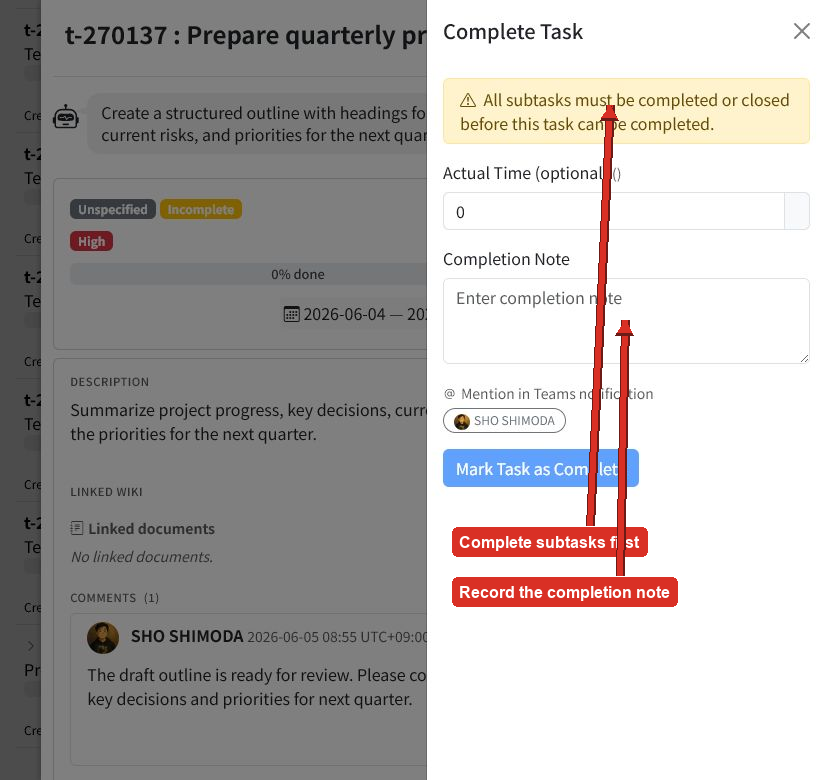
- Open the task actions menu and select Mark as complete, or select the Incomplete badge.
- Enter the actual time when useful.
- Add a completion note describing the result.
- Select Mark task as complete.
A parent task cannot be completed until all of its subtasks are completed or closed.
Review workflow in Kanban view
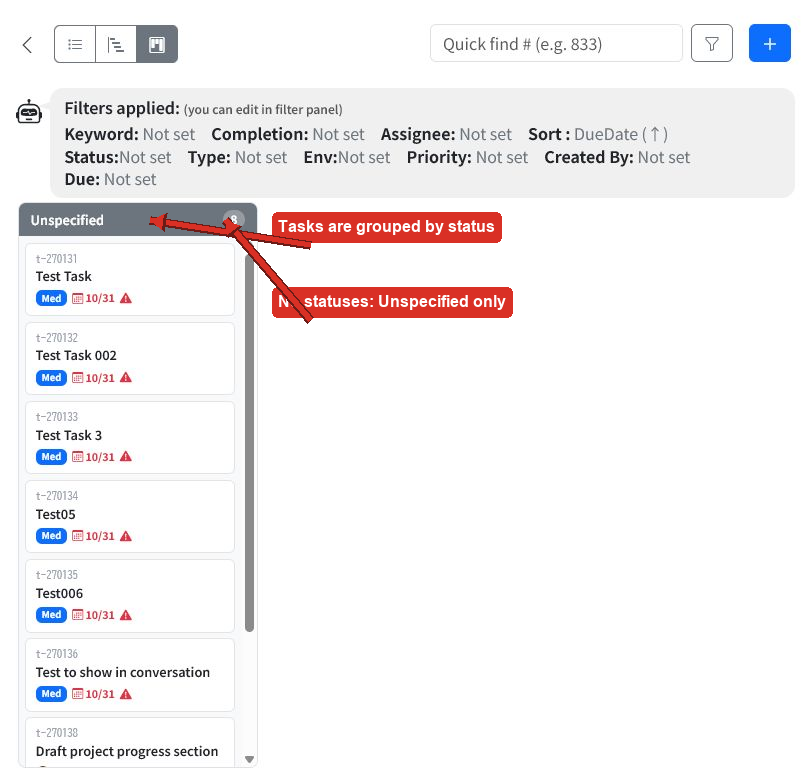
On the Tasks page, select Kanban view to group task cards into columns by status. This makes it easier to review how work is distributed across workflow stages.
Tasks without a configured status appear in the Unspecified column. When a project has no status options, Kanban view contains only that column.
Status, progress, or complete?
- Status: Use it to communicate the task’s stage in the project workflow.
- Progress: Use it to record how much work is finished while the task remains open.
- Complete: Use it when the result is delivered and no further work remains.
Tips
- Use clear status names that represent stages your team actually follows.
- Include a useful reason when moving a task or changing its progress.
- Use completion notes to record the delivered result or final outcome.
- Review the Unspecified column so tasks do not remain outside the intended workflow.
- Complete subtasks before attempting to complete their parent task.
Next steps
Learn how parent and child work is organized in Subtasks and Task Hierarchy, or review the full editing workflow in Creating and Editing Tasks.