Subtasks break a large task into smaller pieces that can be assigned, scheduled, discussed, and completed separately. The parent task keeps the related work together and shows overall subtask progress.
Choose how to add subtasks
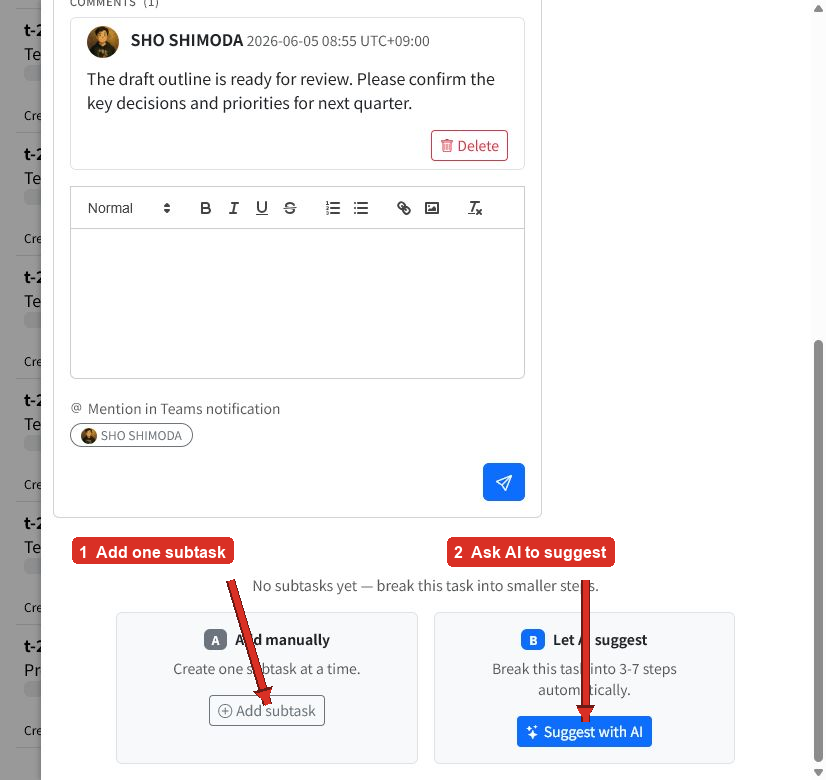
- Open the task that should become the parent.
- Scroll to the bottom of the task detail panel.
- Select Add subtask to create or attach one task.
- Select Suggest with AI when you want help breaking the work into several steps.
Use manual creation when you already know the next piece of work. AI suggestions are useful when the task needs a starting structure.
Create a new subtask
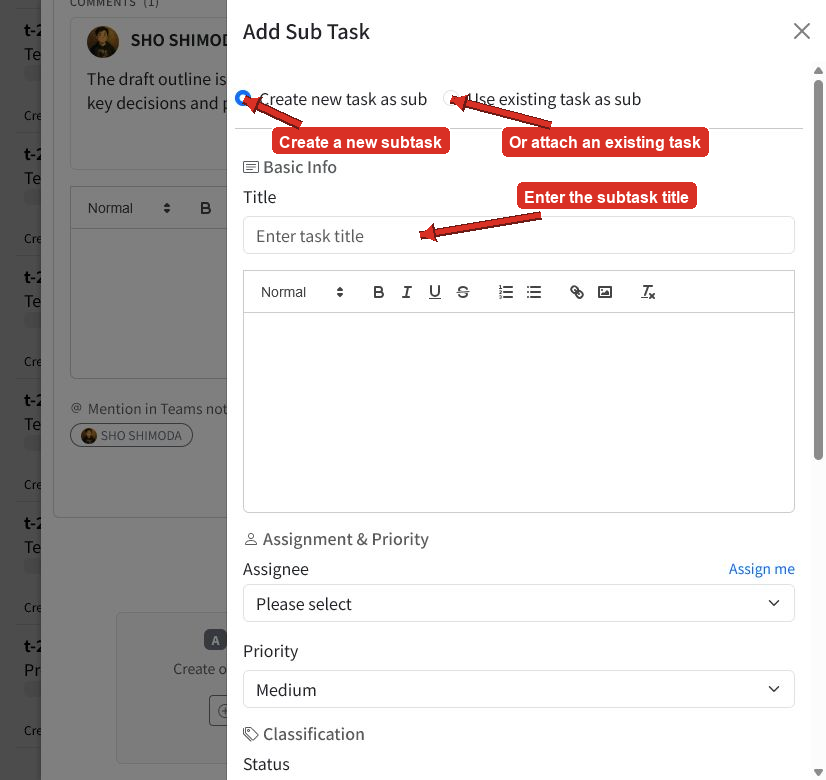
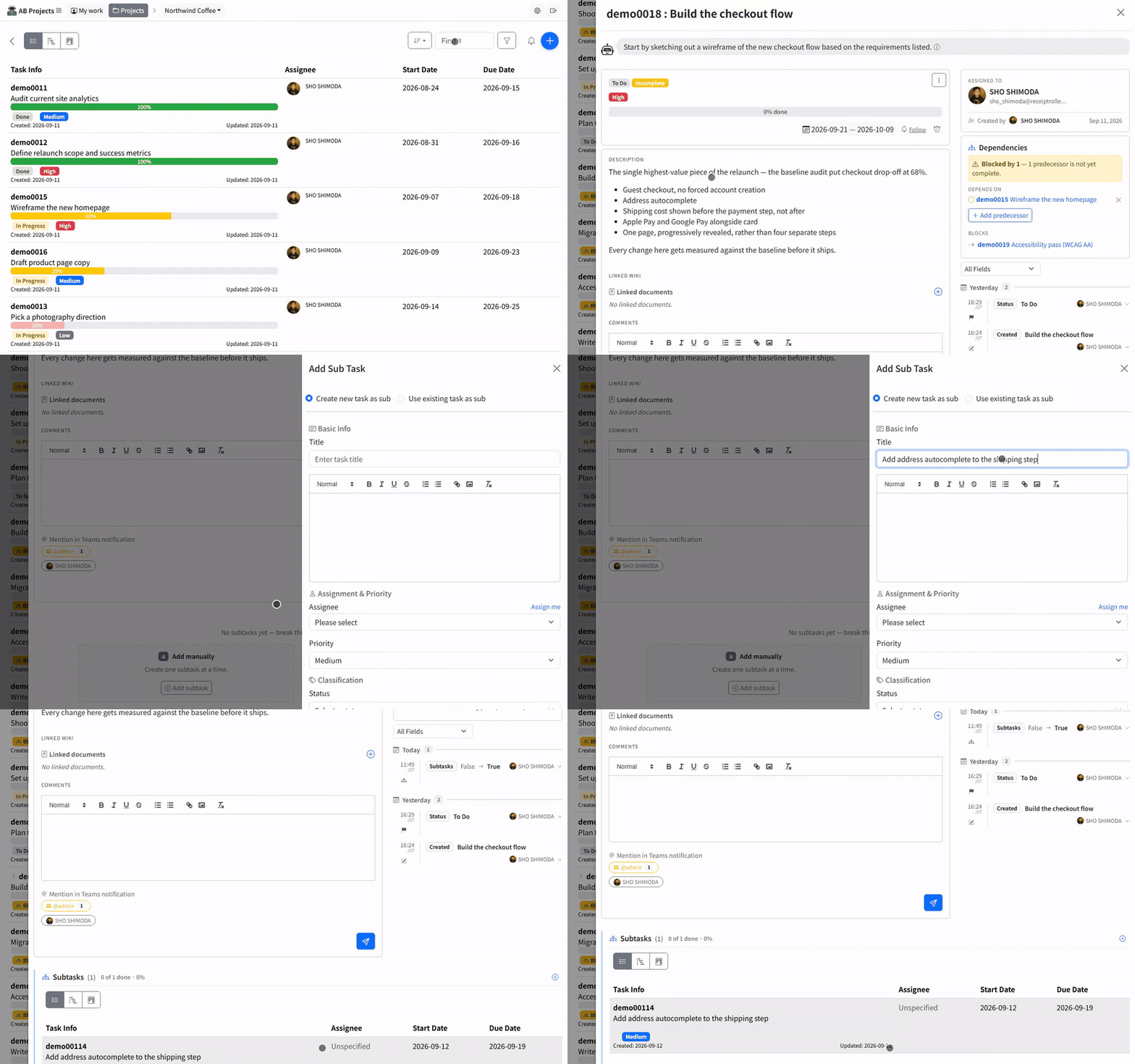
- Select Add subtask.
- Keep Create new task as sub selected.
- Enter a clear title and description.
- Set the assignee, priority, classification, dates, and estimate as needed.
- Select Save.
A subtask is a complete task with its own details, dates, comments, assignee, and history.
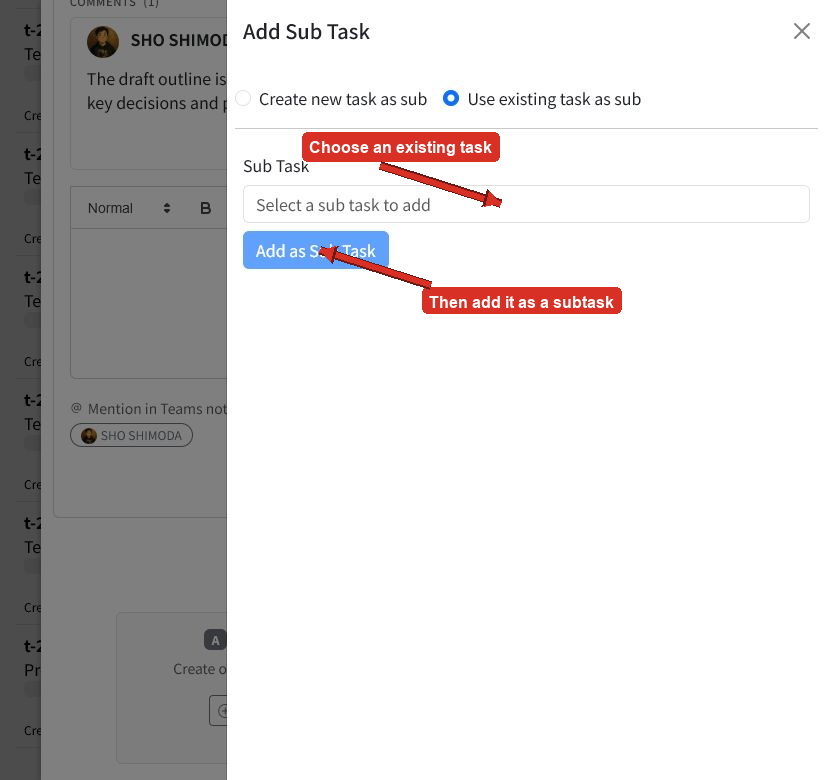
Attach an existing task
- Select Add subtask.
- Select Use existing task as sub.
- Find and select the task you want to attach.
- Select Add as sub task.
This is useful when work was created as a top-level task but later belongs under a larger parent task.
Let AI suggest a breakdown
Select Suggest with AI, then select Suggest subtasks. AB analyzes the parent task and proposes smaller, actionable tasks for you to review. Clear titles and detailed descriptions help produce better suggestions. If no suggestions are generated, add more detail to the parent task and try again.
Review AI-generated suggestions before creating them. Adjust titles, assignments, dates, and other task details after creation when needed.
Review the task hierarchy
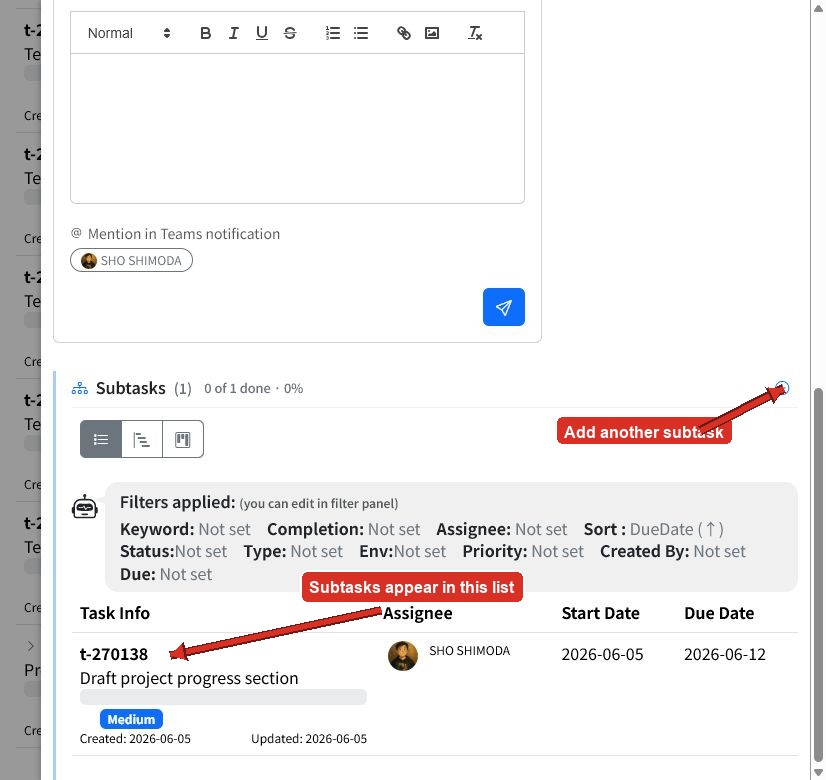
After a subtask is created or attached, it appears in the parent task’s Subtasks section. The section shows how many subtasks are complete and their combined completion percentage.
Select a subtask from the list to open its detail panel. Use the plus button beside the Subtasks heading to add another subtask.
Plan related work
Use the parent and subtask structure to group related work. Give each subtask its own assignee and dates so responsibilities and timing remain clear. When one piece genuinely cannot start until another finishes, record that as a dependency rather than relying on dates alone — a dependency puts a Blocked by warning on the waiting task, a Blocked badge on its Kanban card, and an arrow on the Gantt timeline.
See Setting Due Dates and Priorities for scheduling guidance.
Tips
- Create subtasks around clear deliverables rather than tiny checklist actions.
- Assign subtasks to the people responsible for each part of the work.
- Keep enough detail in the parent task for AI suggestions and team context.
- Review the parent’s Subtasks section regularly to find unfinished work.
- Attach an existing task instead of creating a duplicate when the work already exists.
- Remember that open subtasks block a parent from being completed, while an unmet dependency only warns you.
Next steps
Learn how to discuss work in Task Comments and Mentions, or continue with Task Statuses and Workflows.