A dependency records that one task has to finish before another can start. You always set it from the task that is waiting — open that task, and add the task it depends on. The reverse view, Blocks, fills itself in automatically on the other task.
Depends on, and Blocks
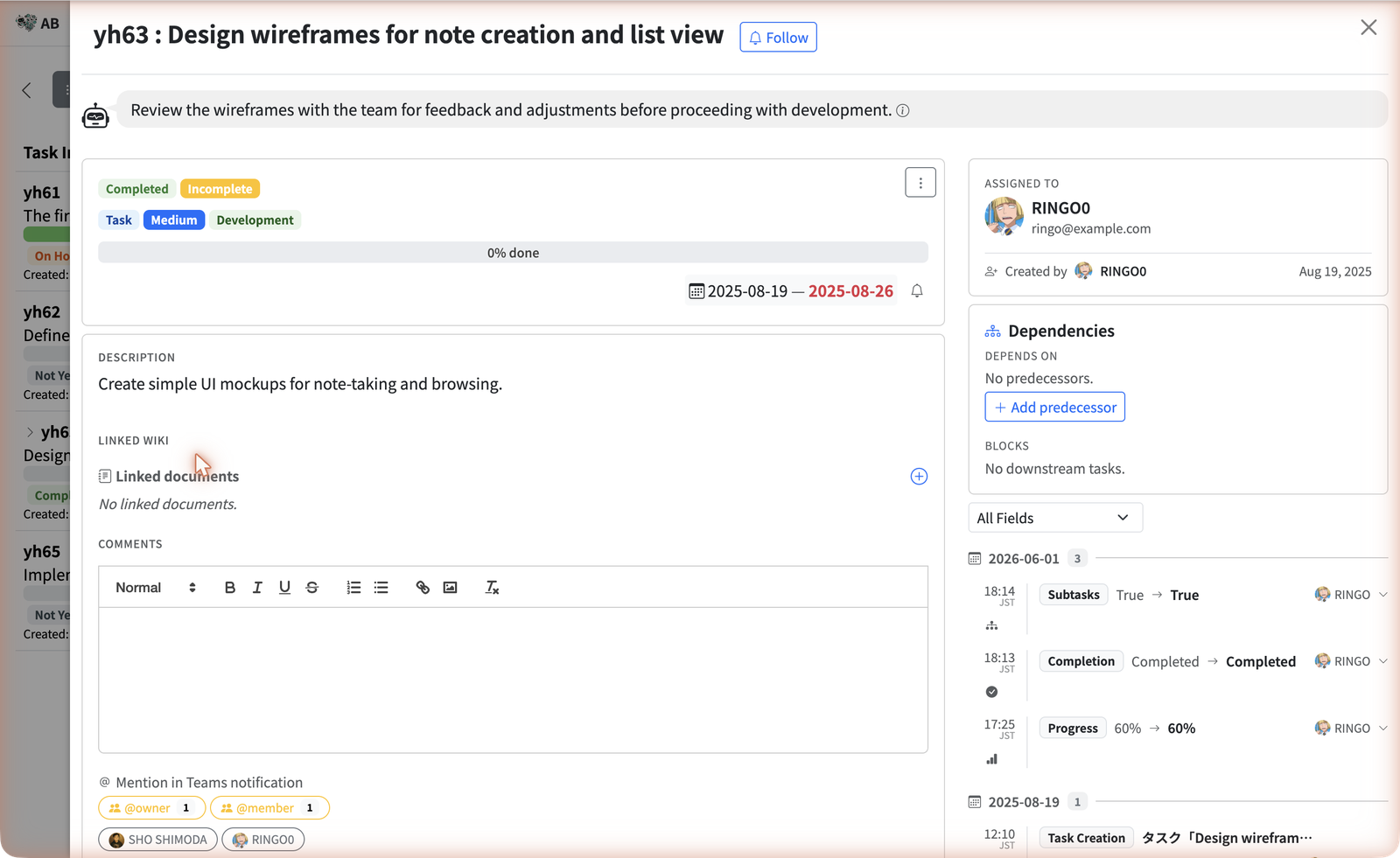
Every task has a Dependencies card with two halves. Only the first one is editable — which is the whole trick to understanding them.
Depends on
The tasks that must finish first — its predecessors. This is the half you edit, with + Add predecessor. If any are still open, a Blocked by 2 notice appears at the top of the card.
Blocks
The downstream tasks waiting on this one. Read-only — it is simply the mirror image of somebody else’s “Depends on”. It’s there so you can see who you’d hold up if this task slips.
Add a predecessor
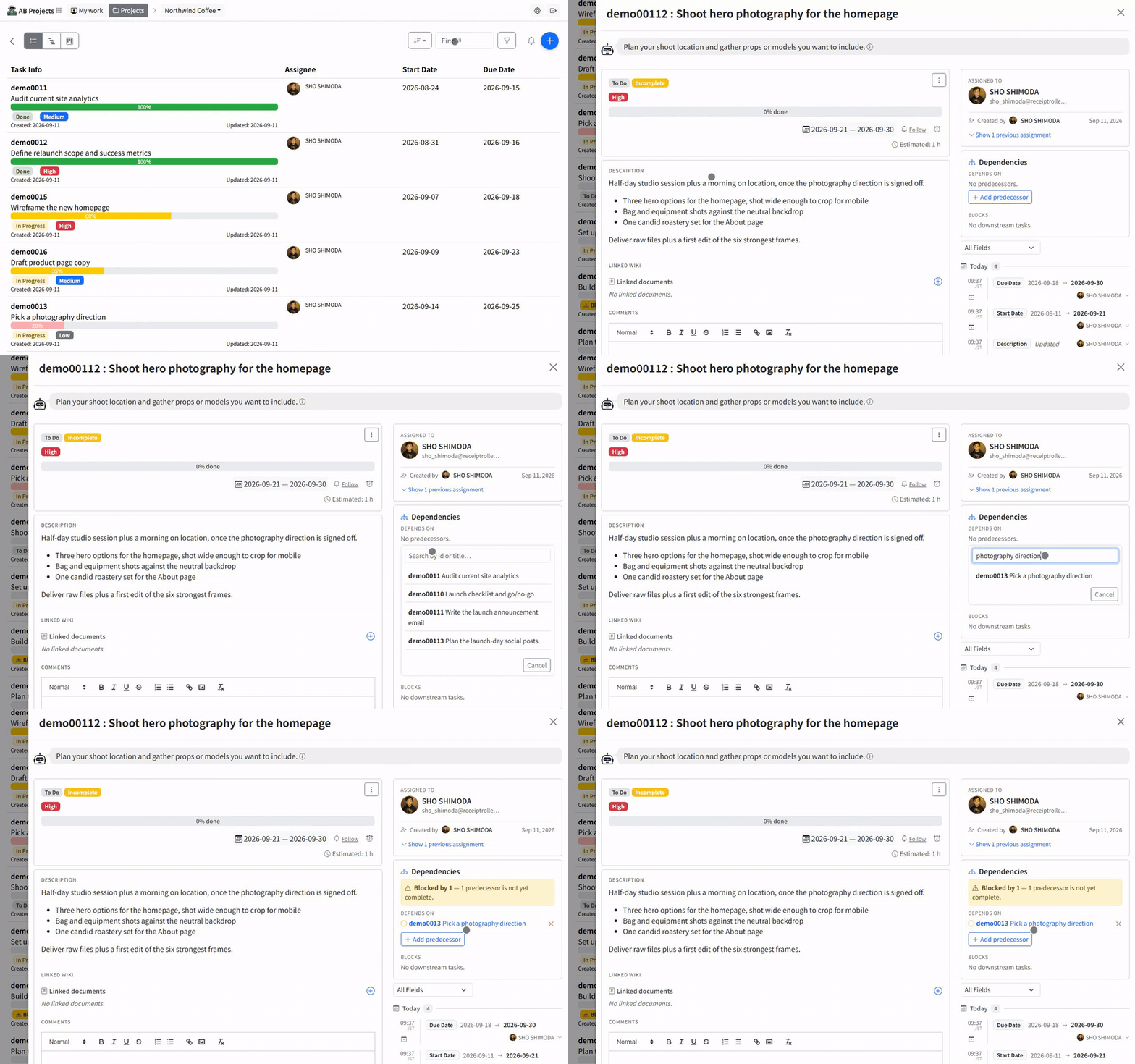
- Open the task that is waiting. Not the one that has to finish first — dependencies are always added from the blocked side.
- Find Dependencies in the right-hand column of the task detail panel.
- Click + Add predecessor. A search box opens: Search by id or title…
- Search and pick the task that must finish first. Type part of its title, or its task id (for example
yh63). - Done. It saves immediately — there is no confirm step. The predecessor now appears under Depends on, and this task appears under Blocks on the other one.
To undo it, use the Remove control beside the predecessor. Removing a dependency never changes either task’s status, dates, or progress — it only deletes the link.
Where blocked work shows up
Once a task has an unfinished predecessor, AB Projects flags it in four places, so a blocked task is hard to miss without opening it.
| Where | What you see |
|---|---|
| The task’s Dependencies card | A warning strip: Blocked by 2 — 2 predecessors are not yet complete. |
| Kanban board | A Blocked badge on the card, tooltipped Has unmet predecessors. |
| Gantt timeline | An arrow drawn from the predecessor’s bar to the bar that waits on it. |
| The complete dialog | The unmet predecessors are listed by id and title, and Mark Task as Complete stays disabled until you tick Complete anyway. |
Rules and limits
Dependencies are deliberately narrow in this release. Knowing the edges saves you guessing at why something was refused.
- Same project only. Both tasks must live in the same project — you can’t make a task wait on one in another project.
- No loops. A task can’t depend on itself, and AB Projects refuses any link that would close a circle (A waits on B, B waits on A). The picker hides the offending tasks, and the server checks again on save.
- Finish-to-start only. A dependency always means “this one finishes, then that one starts.” Start-to-start and finish-to-finish links don’t exist yet.
- Nothing moves on its own. Dependencies never shift dates. If a predecessor slips, its dependants keep their original due dates — you reschedule them yourself, with a reason, as usual.
- Adding or removing one is silent. Unlike a status, date, or assignee change, a dependency edit posts no card to the linked Teams channel and adds no entry to the task’s change history. If a dependency matters to the team, say so in a comment.
Dependencies and AI assistants
An assistant connected over MCP can work with dependencies, though there is no dedicated dependency tool — the links ride along with the ordinary task tools:
- Creating a task can attach predecessors in the same step, so “add a deployment task that waits on the two test tasks” is a single request.
- Updating a task can add or detach predecessors afterwards.
- Reading a task reports which of its predecessors are still open, so an assistant can tell you what is genuinely blocked.
The same rules apply to the assistant as to you: cross-project links, self-links, and anything that would close a loop are refused, and the failure is reported back per task id. The full tool list is in the MCP Tools Reference.
Set the link from the task that waits, watch for the Blocked by strip, and treat it as a prompt to check in rather than a lock on the work — that is the whole feature.