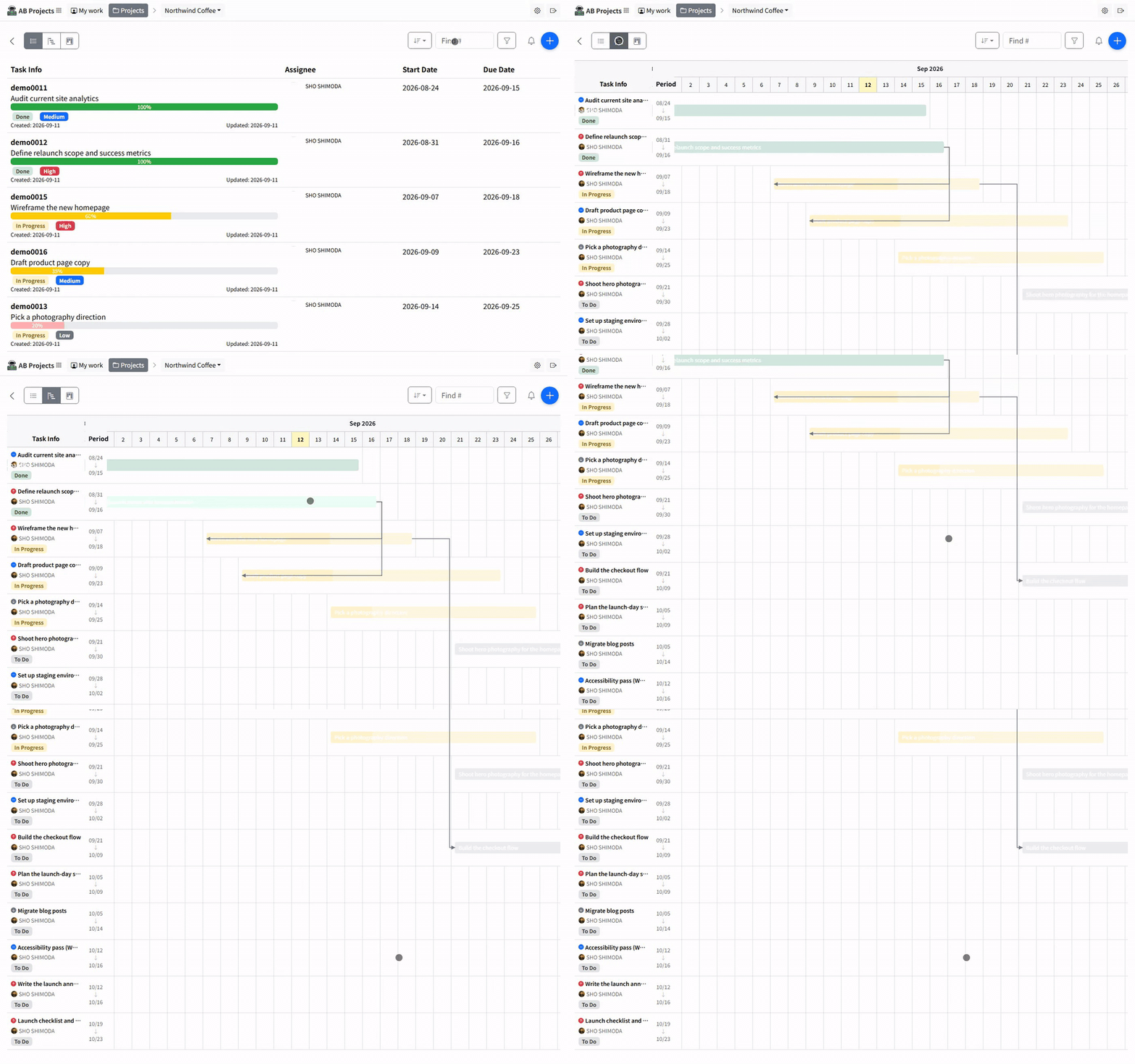
The Gantt view lays your tasks out as bars on a calendar so you can see the schedule, overlaps, and overdue work at a glance. Two things trip people up: a task only gets a bar when it has both a start date and a due date, and bars are not dragged — you change dates in the task detail panel.
No bar? Check the dates. Tasks without a valid start and due date are still listed in the left columns but show “—” instead of a bar. Give the task real dates (see Setting Deadlines and Priorities) and the bar appears.
Opening the Gantt view
- Open the project's task area — the AB Projects tab in your Teams channel, or the same project in the web app.
- Switch views. Use the view switcher above the task list and choose Gantt view (the three views are List view, Gantt view, and Kanban view).
- Orient yourself. The timeline automatically spans all your tasks and always includes today. It opens where your work is:
- If unfinished work started more than a week ago, it opens on the oldest open task — the first rows then have bars, and today is a scroll to the right. Finished tasks never pull the view back.
- Otherwise it opens on today, or on the nearest work when nothing falls in the weeks around today.
Reading the chart
The left columns show each task's priority icon, title, assignee, status badge, and its start → due dates. On the grid itself:
| What you see | What it means |
|---|---|
| Bar color | The task's status color. Priority is the icon next to the title, not the bar color. |
| Fill inside the bar | Progress. Hover for a tooltip with the title and percent. |
| Highlighted styling on a bar | The task is past its due date and not complete — overdue. |
| Arrows between bars | Task dependencies — the arrow points from the task that must finish to the one that waits on it. |
| Highlighted column | Today. Shaded columns are weekends. |
| “—” instead of a bar | The task is missing a valid start or due date. |
Why you can't drag a bar
The chart says so itself, in a line above the timeline: “Open a task to change its dates — every change records a reason for the team.”
Bars aren't draggable by design. Every date change in AB Projects carries a reason, which is written into the task's change history and can post to the linked Teams channel — so anyone can see later not just that a deadline moved, but why. A dragged bar has no reason attached, so dragging would either interrupt you with a dialog anyway or quietly break that record. Dates are changed in the task detail panel instead, where the reason belongs.
Working from the Gantt
- Click a task's row or bar to open the task detail panel, where you edit dates, status, assignee, and comments. Every date change is recorded with who, when, and the reason you enter, and can post to the linked Teams channel (see Adaptive Cards and Task Previews).
- Filter what's shown. The Gantt displays whatever the project's shared filter panel returns — keyword, status, type, environment, assignee, priority, completion. Filter to one assignee or status before a planning meeting to focus the timeline.
- Refresh for teammates' changes. The chart shows the project as of when it loaded; reopen or refresh to pull in the latest.
Dependencies come from the task, not the chart: you define which tasks block which in the task's detail panel — the Gantt only draws them. See Subtasks and Dependencies.
Keep start and due dates honest in the detail panel, and the Gantt stays a trustworthy shared picture of the schedule — without leaving Microsoft Teams.