Tasks are where project work is tracked in AB Projects. Create a task from the Tasks page, assign it to a teammate, set its priority and schedule, then update each field as the work progresses.
Create a task
- Open the project and go to Tasks.
- Select Create new task.
- Enter the task details in the Create new task window.
- Select Save.
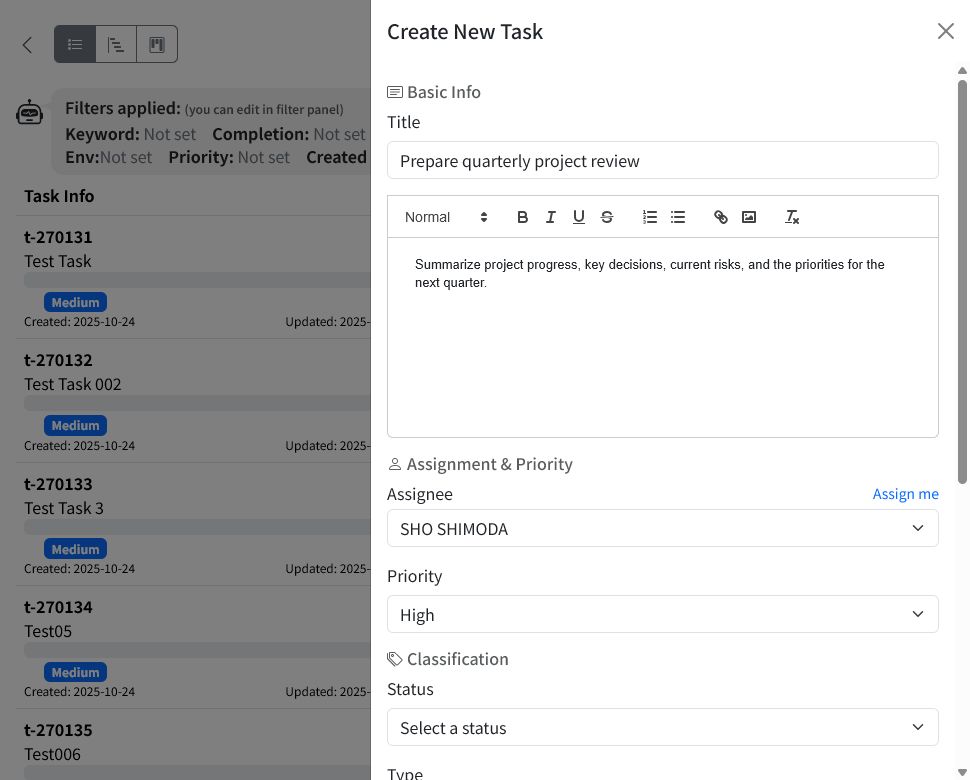
Fields in the Create new task window
Basic info
- Title: Required. Use a short, clear summary of the work.
- Description: Add context, requirements, links, formatting, or images with the rich text editor.
Assignment & priority
- Assignee: Choose a project member, or select Assign me.
- Priority: Choose High, Medium, or Low.
Classification
- Status: Choose the current workflow stage.
- Type: Choose the kind of work, such as a task, request, investigation, or bug.
- Environment: Choose the affected environment when relevant.
The available Status, Type, and Environment options depend on the project settings.
Schedule
- Start date: When work should begin.
- Due date: When the task should be finished.
- Estimated time (hours): An optional effort estimate.
After you save, the task appears in the task list. When the project is connected to Microsoft Teams, task activity can also be shared with the linked channel.
Find and review tasks
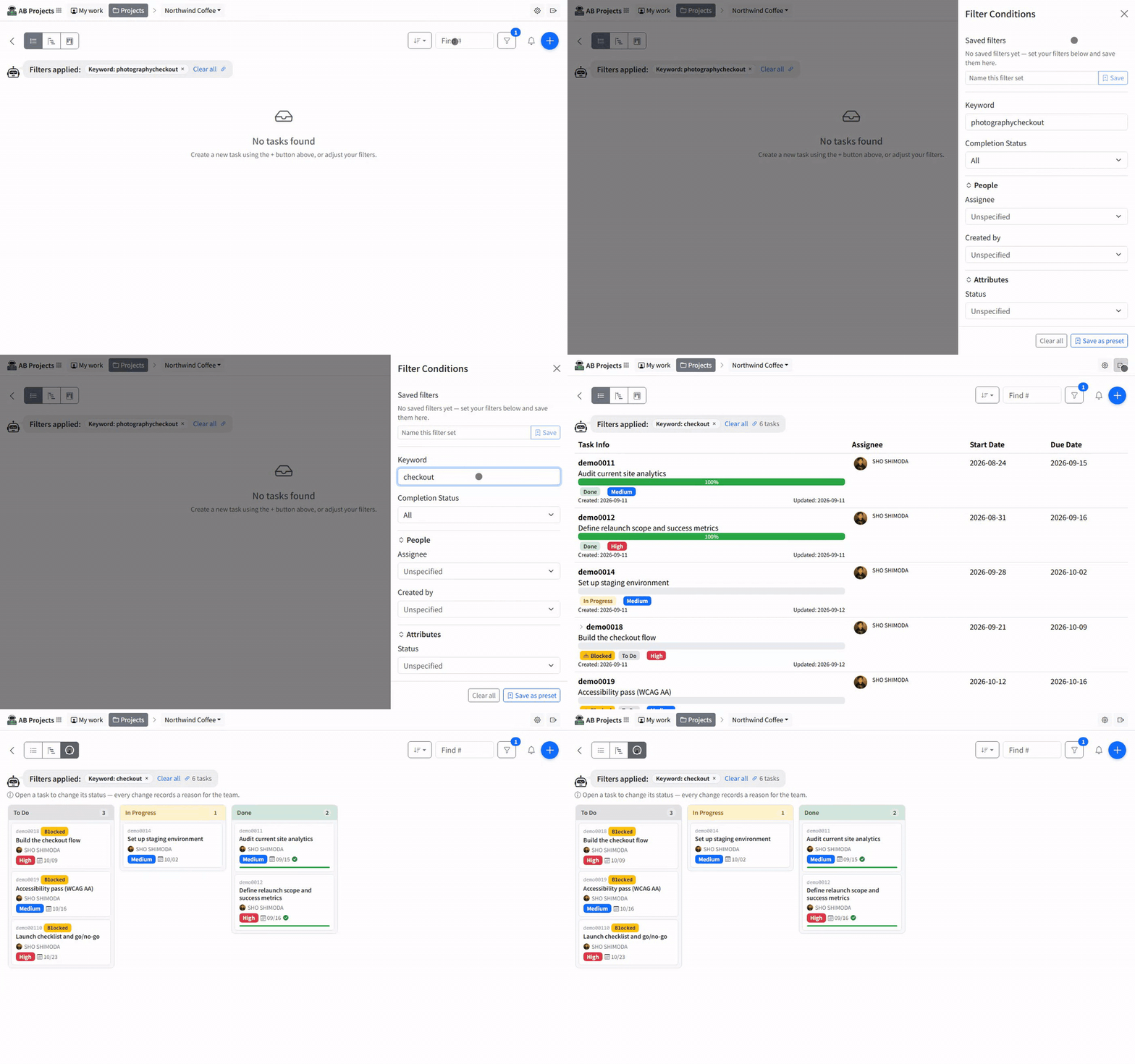
On the Tasks page, switch between List view, Gantt view, and Kanban view. Use Find # when you know the task number, or open the filter panel to narrow the list by keyword, completion status, assignee, priority, status, type, environment, creator, or due date.
In List view, select a task row to open its detail panel.
Edit a task
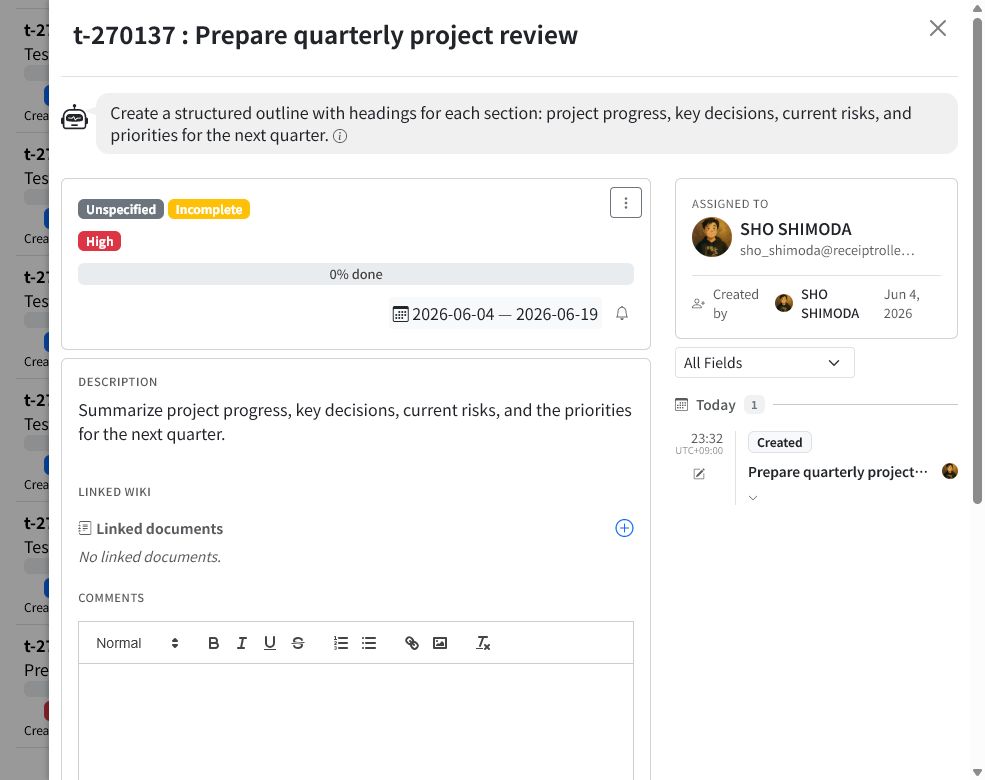
The task detail panel shows the task’s current state, description, linked documents, comments, assignee, and change history. Many fields are edited one at a time, so you can update only the part that changed.
Select a field badge or use the task action controls to change:
- Status and completion
- Task type, Priority, and Environment
- Assignee
- Progress
- Estimated and actual time
- Start date and Due date
- Title and Description
Explain each change
Most edits ask you to Enter the reason for the change before saving. The reason is added to the task history so teammates can understand the context behind status, owner, date, and priority changes.
Comments and mentions
Use Comments in the task detail panel to discuss the work without losing context. Comments support rich text formatting, links, and images. You can also mention project members in Teams notifications so the right people are notified.
Subtasks
Use subtasks when a task needs to be broken into smaller pieces:
- Select Add subtask to create one manually.
- Select Suggest with AI to have AB propose a set of subtasks that you can review and adjust.
Linked documents and reminders
Link wiki documents from the task detail panel to keep related information close to the work. You can also use the reminder control beside the task dates to set a reminder.
Change history
AB records task updates in the task history. Use the history filter to review all changes or focus on a specific field, such as the due date, start date, or task creation.