Use task comments to keep questions, progress updates, and decisions beside the work they relate to. Each comment is stored on the task with its author and posting time.
Add a comment
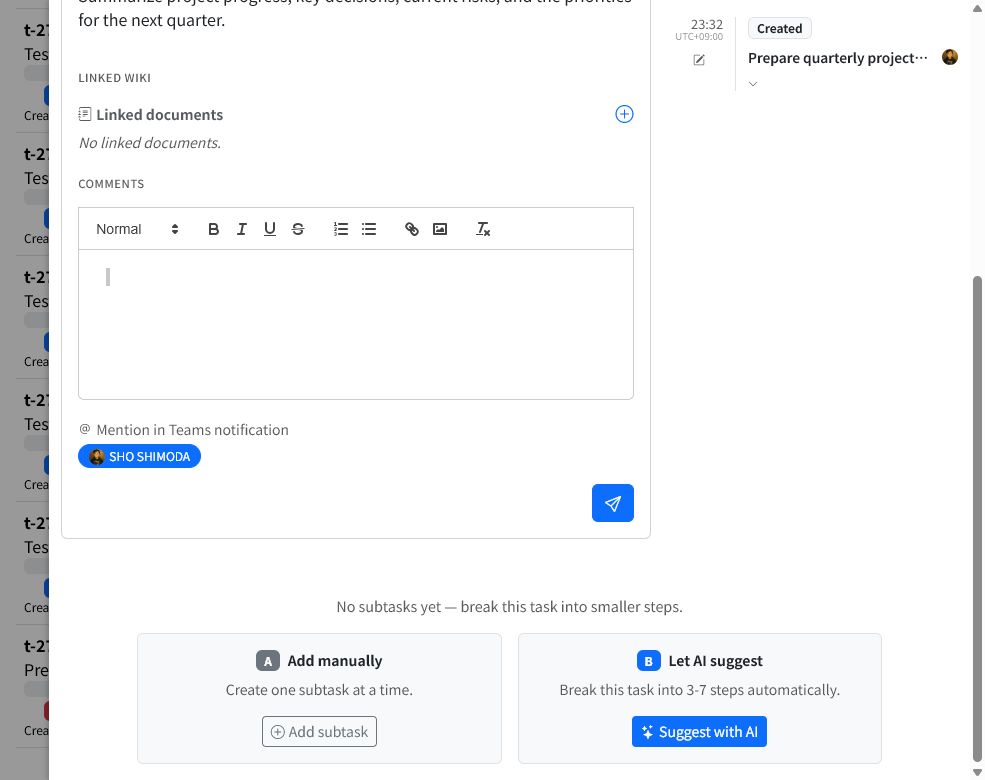
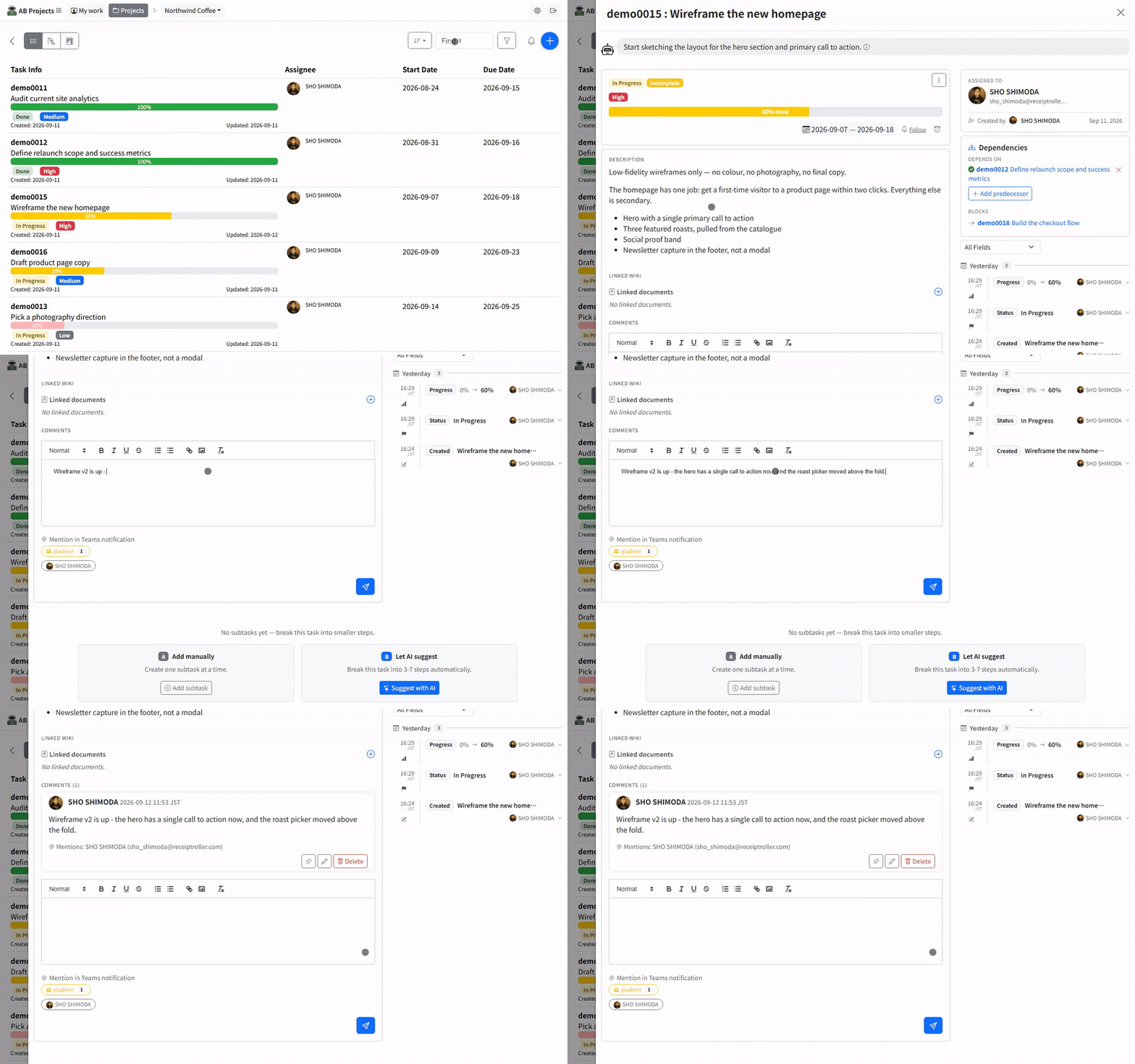
- Open the task from the task list.
- Scroll to Comments.
- Write your update in the comment editor.
- Select any project members who should be mentioned in the Teams notification.
- Select the send button.
The editor supports headings, bold, italic, underline, strikethrough, numbered and bulleted lists, links, and images.
Mention project members
The Mention in Teams notification area lists people available in the project. Select a person to include them in the notification; selected people appear highlighted. Select the person again to remove the mention before posting.
Mentions are useful when someone needs to review, answer, or act on the comment. Mention only the people who need the update so notifications remain meaningful.
Review posted comments
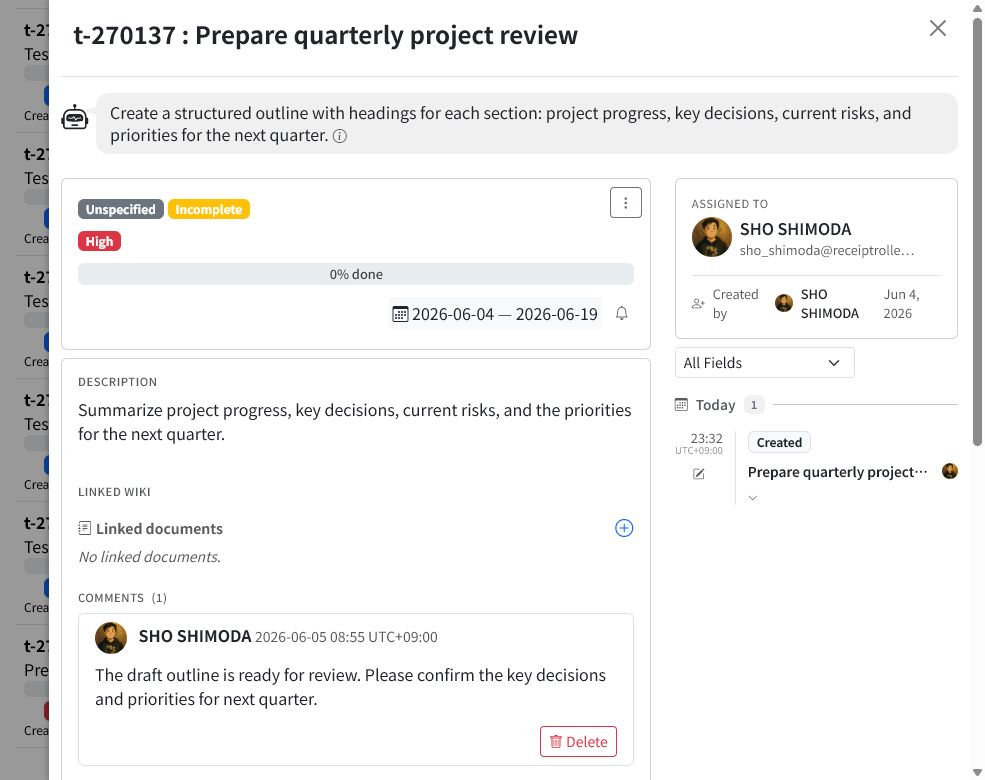
After posting, the comment appears in the task’s comment thread. Each comment shows:
- The author’s name and profile image
- The date, time, and time zone
- The comment content
- A Delete action when available
Post a follow-up comment when you need to clarify an earlier update or add new information.
Comments and Microsoft Teams
When the project is connected to a Microsoft Teams channel, AB can share task comment activity with Teams. Members selected under Mention in Teams notification are included in that notification, helping the right people find the discussion.
The people available for mentions come from the project membership. See Inviting Team Members when someone you need is not listed.
Comments from AI agents
An AI agent connected to AB Projects can also add a comment to a task. For example, you can ask an agent to post a summary, record research findings, or add a progress update. Agent comments appear in the same task discussion for the team to review.
Tips for useful comments
- State the decision, question, or next action near the beginning.
- Mention a project member when you need a response or action from that person.
- Use lists for several questions or review points.
- Use comments for discussion and updates; keep the task description focused on the work’s lasting requirements.
- Post a follow-up instead of deleting an older comment when preserving the discussion history matters.
Next steps
For the full task editing workflow, see Creating and Editing Tasks. To organize larger work, continue with Subtasks and Dependencies.