Due dates and priorities help your team decide what needs attention first. In AB Projects, each task can show a priority, a start date, and a due date, so the work is easier to sort, review, and discuss.
Set dates and priority when creating a task
When you create a task, use the Priority, Start Date, and Due Date fields to make the work easier to plan from the beginning.
- Priority: Choose High, Medium, or Low.
- Start Date: The date work should begin.
- Due Date: The date the task should be finished.
- Estimated Time (hours): An optional effort estimate for planning.
The due date should be the same as or later than the start date.
Review dates and priority on a task
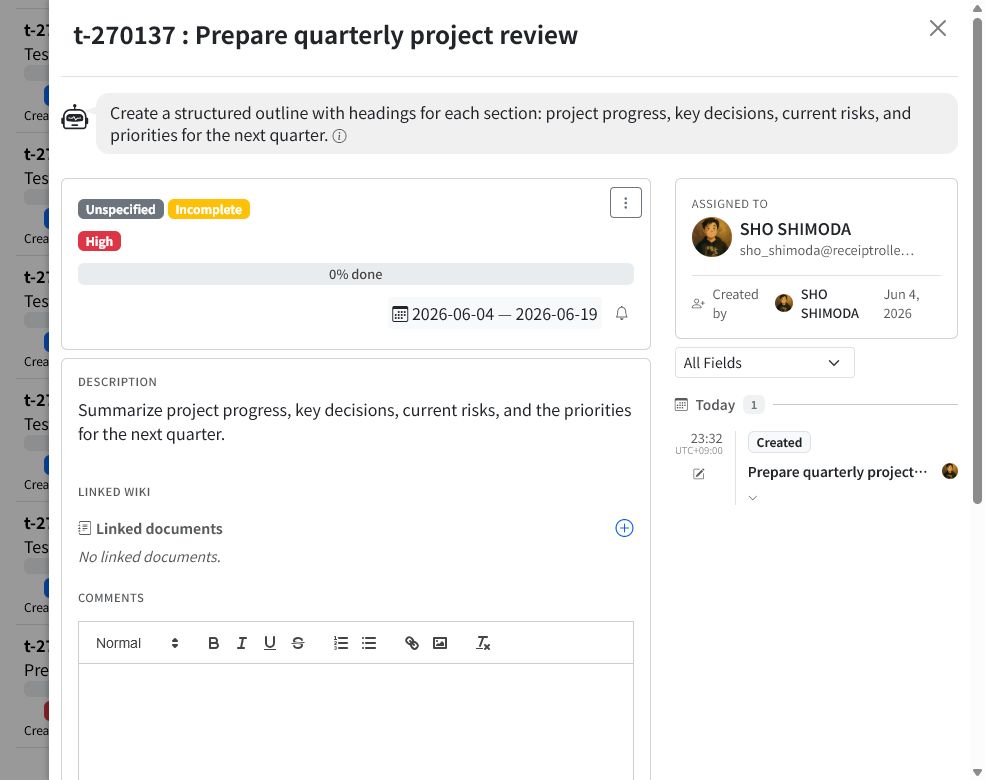
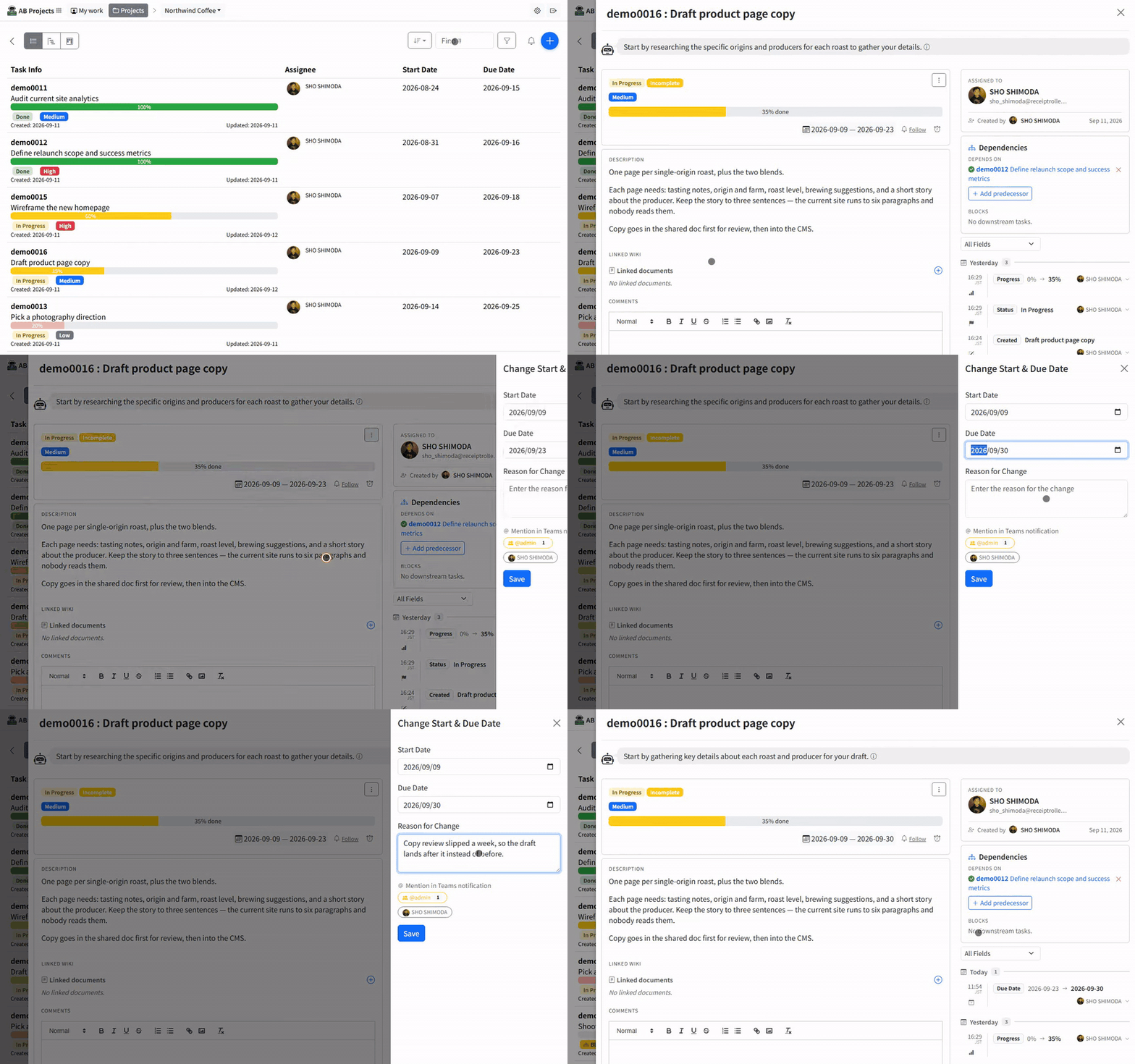
Open a task to see its current priority badge, progress, and date range. The same information also appears in the task list, where you can sort and filter by due date or priority.
Change a start date or due date
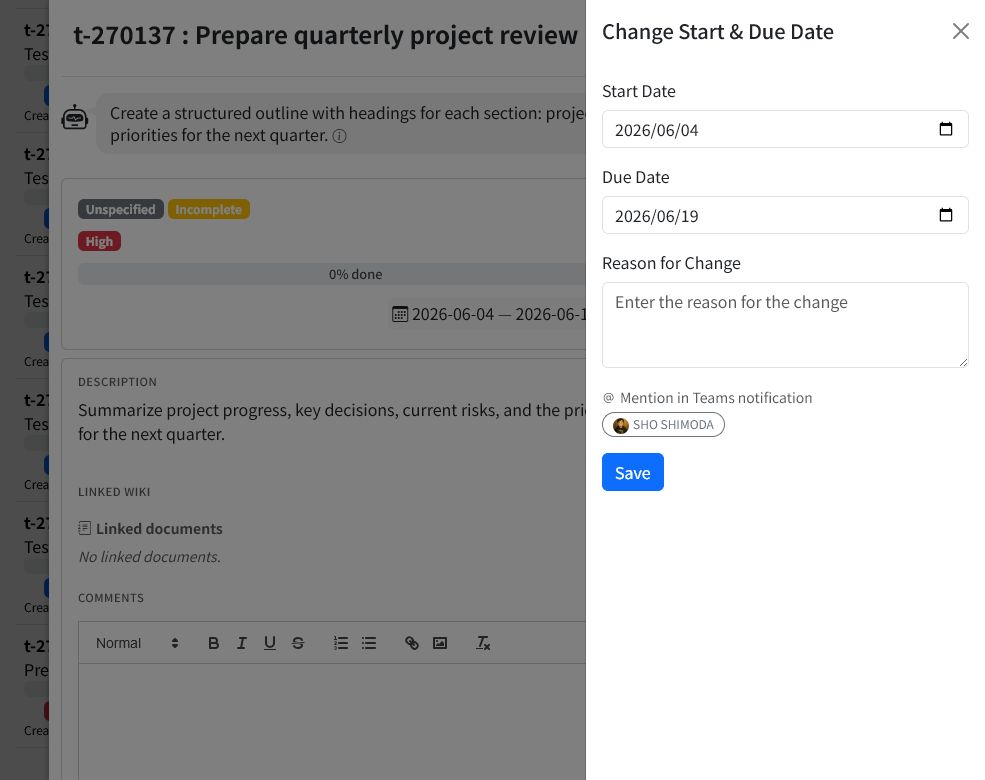
- Open the task from the task list.
- Select the date range in the task detail panel.
- Update the Start Date or Due Date.
- Enter a short Reason for Change.
- Select Save.
Change task priority
- Open the task from the task list.
- Select the priority badge, such as High, Medium, or Low.
- Choose the new priority.
- Enter a short reason for the change.
- Save the update.
Use priority to communicate urgency:
- High: Important work that should be handled soon or watched closely.
- Medium: Normal planned work.
- Low: Work that can wait or has less immediate impact.
Why AB asks for a reason
Changing a date or priority can affect other people’s plans. AB asks for a reason so the task history records both the change and its context. This helps teammates understand why a deadline moved or why work became more or less urgent.
Tips
- Use a realistic due date instead of a placeholder date.
- Combine High priority with a near due date for time-sensitive work.
- Use Medium for most planned work so High stays meaningful.
- Review overdue and due-today tasks from the project home page or task filters.
- Update the reason clearly, for example: “Customer review moved to Friday” or “Dependency finished earlier than expected.”
Next steps
For the full task editing workflow, see Creating and Editing Tasks. To break a large task into smaller steps, continue with Subtasks and Dependencies.