Every ActionBridge app follows the same shape inside Microsoft Teams: a personal app in your left rail for your own view, and channel tabs for shared team work. It's all one system — the same data is on the web too.
The personal app
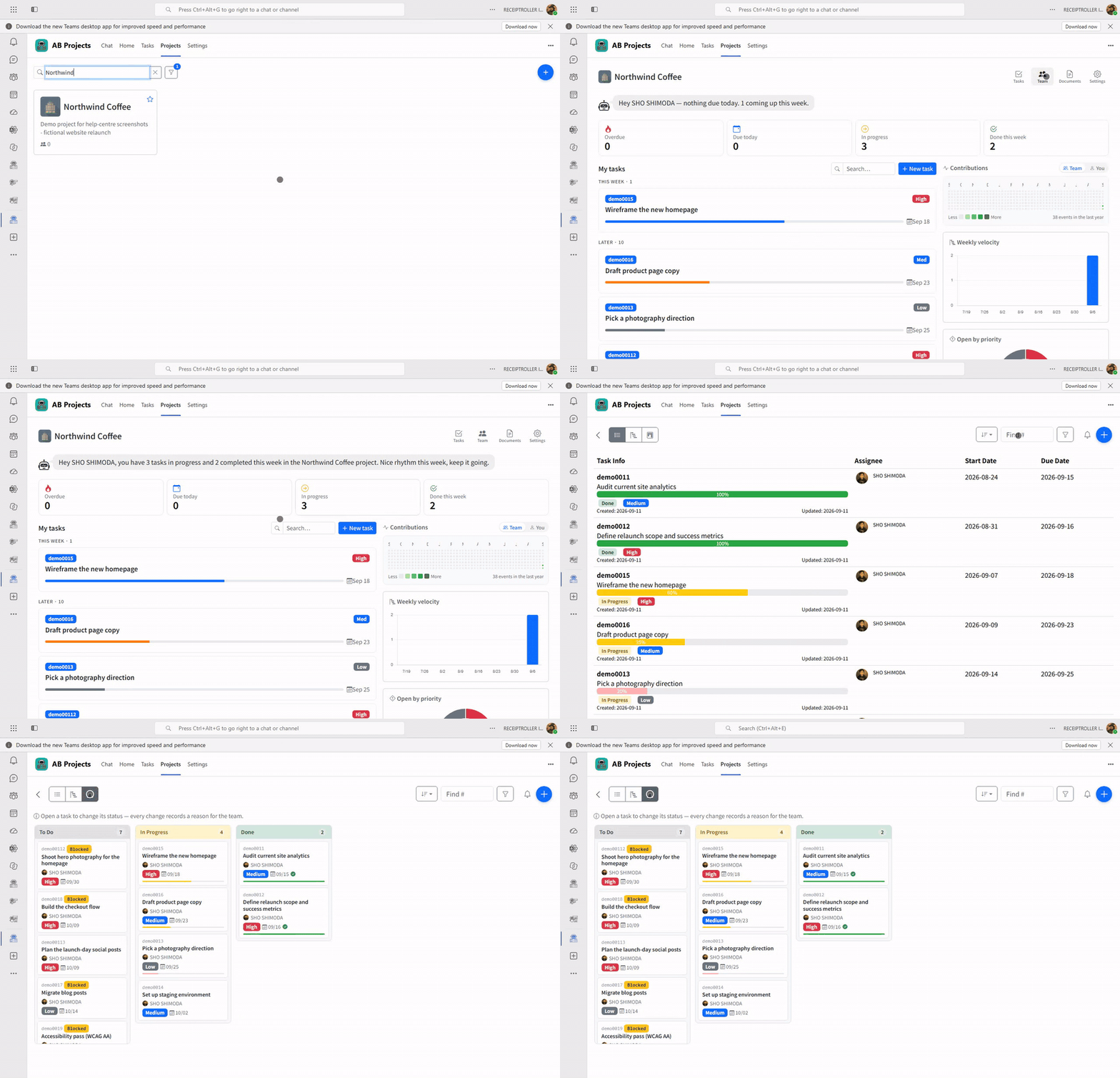
Pin an AB app to your Teams left rail and it opens with a Home tab plus product-specific tabs:
| App | Tabs |
|---|---|
| AB Projects | Home · Tasks · Projects · Settings |
| AB Sales | Home · Workspaces · Settings |
Home is your personal cockpit across everything you belong to; the other tabs drill into the work — your tasks and projects, or your sales workspaces.
Channel tabs
Add an AB app as a tab in a Teams channel to give the whole channel a shared workspace — a project board (AB Projects) or a sales pipeline (AB Sales). Everyone in the channel sees the same content and works it together.
On the web
The same workspaces are reachable in a browser at actionbridge.io, signed in with the same Microsoft account. When the app runs inside Teams, the native tab strip handles navigation; on the web, a menu gives you the same moves.