The filter panel does three jobs: it narrows the task list, it saves a set of conditions you use often, and it shares the resulting view as a link. Open it with the funnel icon above the task list.
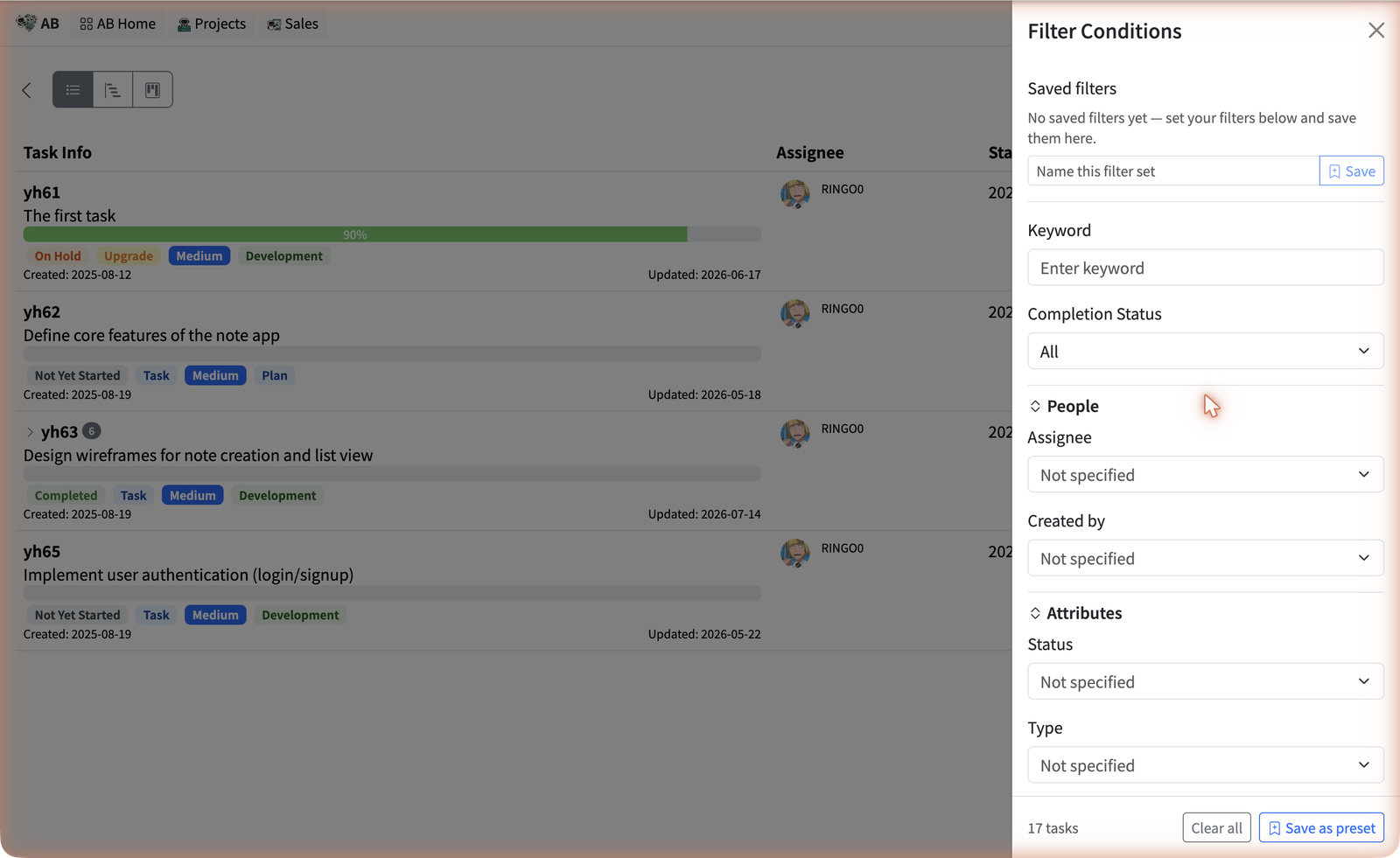
What you can filter on
Conditions are grouped into collapsible sections. Each section has its own Clear this section control, so you can drop one group without losing the rest.
| Section | Conditions |
|---|---|
| (top) | Keyword — matches task title and description. Completion Status — All, Complete only, or Incomplete only. |
| People | Assignee and Created by. |
| Attributes | Status, Type, Environment, and Priority. The first three come from your project’s own workflow lists. |
| Dates | Start date, Due date, Created date, and Updated date. |
| Advanced | Parent Task ID — show only the subtasks of one task. Show omitted tasks — omitted tasks are hidden until you tick this. |
Everything you apply appears as a chip in the Filters applied row above the list, each with its own × so you can drop one condition without reopening the panel. The panel footer shows the live match count, and the same filters feed the List, Gantt, and Kanban views.
Save a filter set you use often
If you keep rebuilding the same filter — “my open bugs”, “this sprint, unassigned” — save it once and apply it with one click afterwards.
- Set the conditions you want in the filter panel.
- Type a name in Name this filter set, at the top of the panel (up to 40 characters).
- Click Save — or use Save as preset in the panel footer, which does the same thing.
- Apply it any time by clicking its chip under Saved filters. The chip for the saved filter you’re currently using is highlighted.
Saving under a name that already exists updates that saved filter rather than adding a second one — the panel confirms with Updated “…” instead of Saved “…”. To delete one, click the × on its chip and confirm.
Share a filtered view
Next to the Filters applied chips is a link icon — Copy a link to this filtered view. Click it and the URL lands on your clipboard, with Link copied shown briefly. Paste it into a Teams message and whoever opens it sees the task list already narrowed the same way.
Sorting and the count
Sorting is separate from filtering, in the control beside the filter icon. Sort by Due date, Start date, Created date, Priority, or Status, ascending or descending. The task count in the panel footer always reflects the filters currently applied, which makes it a quick way to answer “how many are actually open?” without exporting anything.
Clear the panel when tasks go missing, save the filter sets you rebuild often, and remember that a shared link only carries conditions — never a saved filter.