The ticket inbox is built to be scanned, not read. Every row carries a few signals — who it’s waiting on, which channel it arrived from, how long it’s been sitting — so you can tell what needs you in a couple of seconds without opening anything.
Two views: the dashboard and the queue
The top of a desk toggles between Dashboard (the numbers) and Tickets (the queue you work) — the same in Teams and in the web app. The two are connected: on the dashboard, clicking a metric such as Unassigned jumps straight to the Tickets list filtered to exactly those tickets — the number on the tile and the length of the list always match.
The queue keeps itself current
You don’t have to reload. When a customer writes in — on any channel — or a teammate replies, the queue picks it up on its own within a second or two. Leave the Tickets view open on a second monitor and it stays a live picture of the desk.
Next to the view toggle there is a Refresh button and a quiet line saying when the list was last brought up to date: Updated just now, then Updated 3m ago as it ages. It is there so the list never leaves you guessing whether you are looking at something stale — and so you have a manual pull if you want one.
As a backstop the list also refreshes itself every few minutes regardless, so even if a live update is missed the queue is never more than a moment behind.
Reading a row
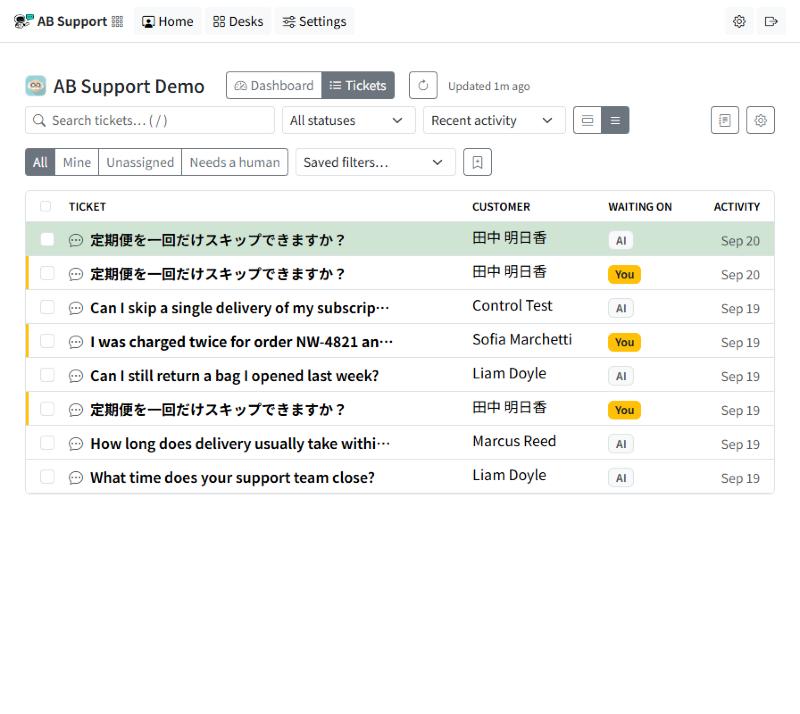
Each row in the queue shows, at a glance:
| Signal | What it tells you |
|---|---|
| Channel icon | Where it came from — web chat, email, web form, WhatsApp, or SMS. The channel changes how you reply (length, tone, expected speed). |
| Subject & preview | The subject plus a one-line preview of the latest message, so you can triage by what was actually said. |
| Customer | Who it’s from, and — underneath — who owns it. See your customer store. |
| Waiting on | Needs a reply (someone on your team has to answer), Customer, AI, or the done state — whose court it’s in. A ticket the AI is still answering reads AI, never Needs a reply. |
| Unassigned / AI | Unassigned is stated in amber when no one owns it, so it doesn’t hide as an absence. A ticket the AI is answering reads AI instead: the AI holds it until it hands the ticket on, someone replies, or someone is assigned. See Assigning Tickets. |
| Priority | A High/Urgent badge when one is set. |
| Activity | When the ticket last moved, and how many messages are in the thread. Hover the time for the exact date and time, shown in your own timezone. |
Rows that need a person are weighted more heavily and resolved ones fade back, so the queue reads top-down by what matters. See How a Support Ticket Works for what happens once you open one.
Comfortable or compact rows
With a long queue you may want more tickets on screen than the comfortable spacing allows. The two buttons next to the sort menu switch between Comfortable rows and Compact rows .
Compact keeps one line per ticket: the subject, customer, who it’s waiting on, status and age. It hides the message preview, the assignee line and the message count — open the ticket, or switch back, when you need them. Your choice is remembered for each desk in the browser you set it in.
The switch is on the wide layout only; on a phone the queue is already a stack of cards (see below).
Find the right tickets fast
Above the list:
- Quick filters — All, Mine, Unassigned, AI, and Needs a reply: the questions agents actually ask. Unassigned is the tickets nobody holds; AI is the ones the AI is answering right now; Needs a reply is the open tickets someone on your team has to answer, which leaves out the AI’s. It is the same count as the Needs a reply tiles on Home and the dashboard.
- Status — a dropdown that starts on All statuses, to narrow to one stage.
- Sort — Recent activity (the default) or Oldest waiting, which floats the ticket that has gone longest without a reply to the top — how you catch one that’s slipped through.
- Search by subject or customer name. Press / to jump straight into the box.
Whenever a filter is on, the list says “Showing X of Y” with a Clear filters link, so a narrowed list never reads as lost tickets.
Long queues: 100 rows at a time
A busy desk can hold thousands of tickets, so the list shows the first 100 of your current view and adds Show 100 more underneath, with a count of how many there are. Filters, search and the counts still cover every ticket on the desk — only the drawing is held back. You rarely need the button: moving down with j, or stepping with Next, past the hundredth ticket brings the next rows in for you.
Saved filters
A view you use every day can be saved and reused. Set up the combination you want (quick filter + status + sort), then bookmark it with the button and give it a name. It reappears in the Saved filters picker. A filter saved with the quick filter that used to be called Needs a human still opens, and now shows Needs a reply.
Personal
Yours alone. Save it, apply it from the picker, and delete your own whenever.
Shared (desk)
Shared with everyone on the desk (say, “Escalations”). Only a desk admin can create or remove these — see roles in Settings — but everyone can apply them.
Work the queue without going back to the list
Open a ticket and you can move through the queue in place. Previous / Next step to the next ticket in your current filter (with a “2 of 8” position), so you never lose your place.
- After you resolve, AB Support offers the next ticket. A green Resolved. strip appears with a Next ticket button (or press j). It never moves on by itself — you can still reread what you closed or add a note first. On the last ticket in your view it says so and offers Back to the list.
- Closing a ticket returns you to where you were. The list scrolls to the ticket you were last on — after stepping through ten, that’s the tenth, not the first.
- Back goes where you came from. A ticket opened from Home shows Back to Home; one opened from a link in an email or a Teams card shows Back to inbox.
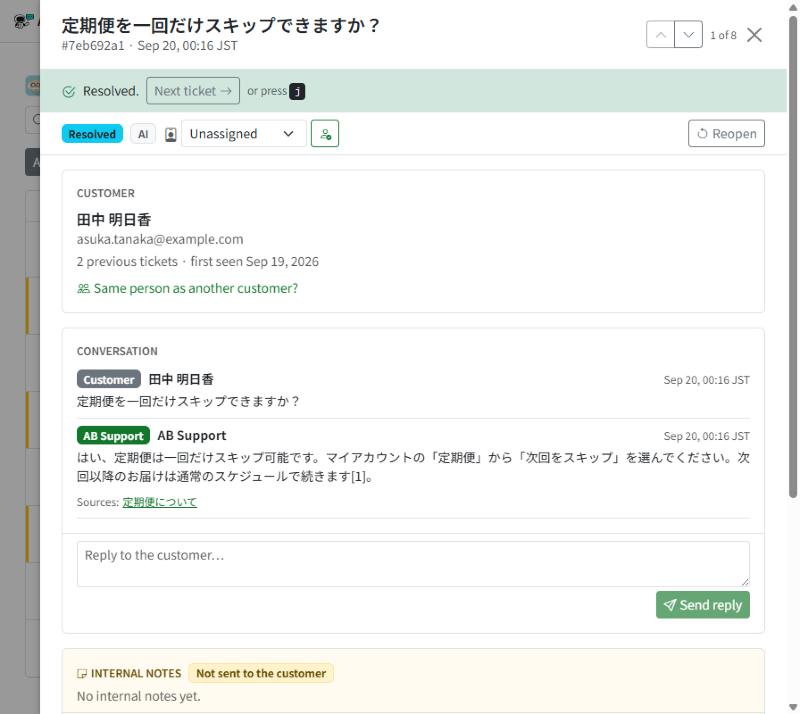
Keyboard shortcuts make it faster still:
| Key | Does |
|---|---|
| j / k | Next / previous ticket. In the list, the cursor moves and the list scrolls to keep it on screen. |
| Enter | Open the focused ticket |
| e | Resolve / reopen (asks for a reason) |
| a | Assign to me |
| / | Jump to search |
| ? | Show the shortcut list |
Handling several at once
On a Monday backlog you can act on many tickets together. Tick the checkboxes (or the header box to take every ticket shown), then Assign to me or Resolve them in one go. Assigning takes any ticket the AI was answering away from it, the same as assigning one at a time. For one-at-a-time assignment, see Assigning Tickets.
On a phone
On a narrow screen the table becomes a stack of cards that keep the essentials — channel, who it’s waiting on, the assignee, and age — so you can triage on the go without losing the context you decide from.
So that the tickets come first, the toolbar is folded too. The quick filters and search stay on screen; the status dropdown, the sort and your saved filters sit behind a Filters button — tap it to show them, tap again to fold them away. To act on several tickets, tap Select at the end of the quick-filter row.
The whole point of the inbox is the two-second scan: let the row signals tell you what needs you, filter to the slice you’re working, and move through it without breaking stride.